
What Changed in Microsoft Teams “Shared” Files Experience (2025 Update) — And Why It Actually Matters

Overview
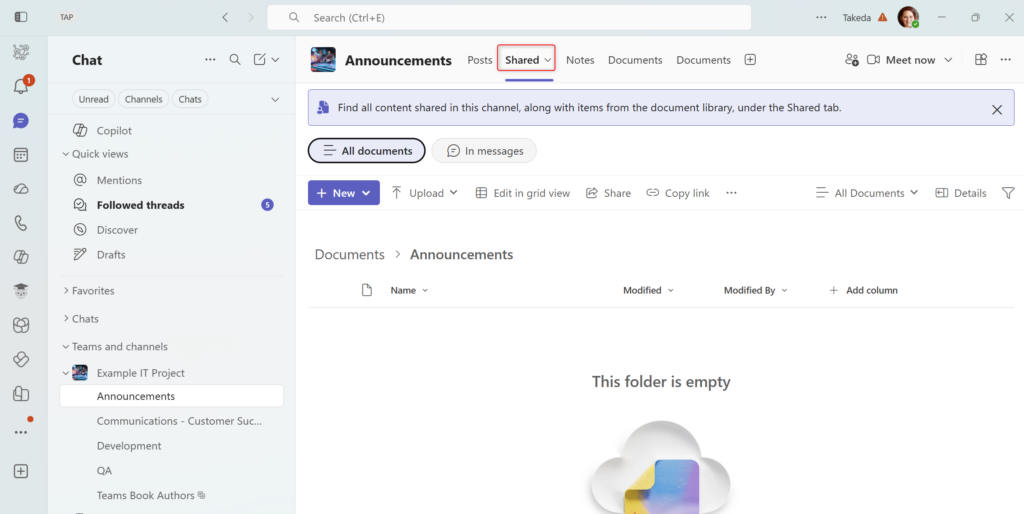
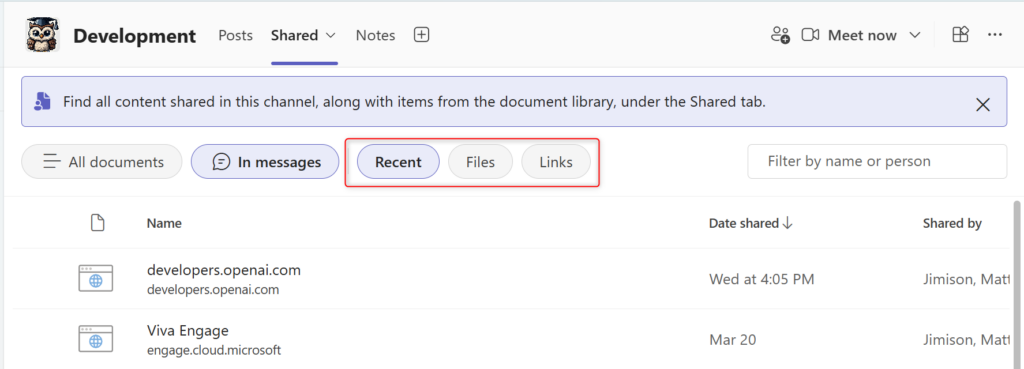
Microsoft introduced a significant update to how files are accessed within Microsoft Teams, evolving the traditional “Files” tab into a broader “Shared” experience.
At first glance, this feels like a simple UI improvement.
It isn’t.
This change reflects a deeper shift in how Microsoft 365 is designed to work:
- Users are no longer expected to navigate storage systems
- Instead, content is surfaced based on activity, relevance, and context
This aligns Teams more closely with SharePoint and OneDrive as a unified content layer—and increasingly, with Copilot as the access layer on top of it.
What Changed
The updated experience replaces the traditional file browsing model with a content aggregation model.
The “Shared” tab now surfaces files from:
- Teams channels (stored in SharePoint)
- Chats (stored in OneDrive)
- Meetings (tied to chat or channel context)
- Recently accessed and recommended files
Instead of asking:
“Where is this file stored?”
The system answers:
“What files are relevant to what you’re doing right now?”
Example: New “Shared” Tab in Teams
4
What It Actually Does (Behind the Scenes)
It’s important to be precise here—because this is where many misunderstand the change.
Nothing about storage has changed:
- Channel files → still in SharePoint document libraries
- Chat files → still in OneDrive (uploader’s account)
- Meeting files → tied to chat/channel storage
What has changed is the access model.
Teams is no longer acting as a navigation tool.
It is acting as a content aggregator and context engine.
This means:
- Users see files they interacted with—not necessarily where they live
- Relevance is determined by activity, not structure
- Visibility ≠ ownership
Why This Matters
This shift introduces a fundamental change in how users perceive and interact with content. The challenge is that while the experience feels simpler, the underlying complexity hasn’t gone away—it’s just been hidden.
1. Users Will Stop Understanding Where Files Live
Historically, users had to think about:
- Which Team or site they were in
- Which library or folder they stored files in
Now, that friction is removed.
That’s good for usability—but it removes critical context.
Example
A project manager shares a file during a Teams chat with a vendor.
- The file is stored in their OneDrive
- It appears in the “Shared” tab for everyone
Two weeks later:
- The project manager leaves the company
- Their OneDrive is deleted after retention expires
👉 The team still expects the file to exist—but it’s gone.
Context:
The system optimized for access, not durability. Users no longer distinguish between temporary sharing and structured storage.
2. SharePoint Becomes Even More Critical (Even If Invisible)
Even though users feel like they are working entirely in Teams, the reality is:
- SharePoint still controls permissions
- SharePoint still governs lifecycle and retention
- SharePoint still defines structure and authority
The difference is that users are now interacting with SharePoint indirectly.
Example
A department stores policies across:
- Multiple SharePoint sites
- Several document libraries
- Duplicate files with slight variations
In Teams:
- Users see all versions in the “Shared” view
- There is no clear signal of which is authoritative
👉 Users unknowingly reference outdated policies.
Context:
When visibility is driven by activity rather than structure, content quality and governance become the only source of truth.
3. Information Architecture Matters More Than Ever
The system now relies on signals like:
- Recent activity
- User interaction
- File relationships
If your structure is inconsistent, the system cannot reliably determine:
- Which version is correct
- Which file is authoritative
- Which content should surface first
Example
A sales team stores proposal decks in:
- A general Sales Team
- Individual project Teams
- Private channels
Multiple versions of the same file exist.
In the “Shared” tab:
- All versions surface based on recent edits
- Copilot references an outdated version
👉 Incorrect pricing is sent to a client.
Context:
The system is not broken—it is reflecting the environment it was given.
Poor IA leads to confidently wrong outcomes.
4. Context Becomes the New Navigation Model
Users are no longer navigating through:
- Sites
- Libraries
- Folder hierarchies
They are navigating through:
- Conversations
- Meetings
- Activity history
This creates a shift from structured navigation → contextual discovery
Example
A file is shared during a meeting discussion.
Later:
- A user finds it in the “Shared” tab
- Assumes it is the official project document
In reality:
- It was a draft shared during discussion
- Not stored in the official project location
👉 The wrong file is reused downstream.
Context:
Context creates perceived authority, even when the content is not governed or finalized.
5. Copilot Will Amplify Everything (Good or Bad)
Although this post is not about AI specifically, this change directly impacts how Copilot functions.
Copilot pulls from:
- Shared files
- Recently accessed content
- Accessible documents across Teams, SharePoint, and OneDrive
Example
A user asks:
“What’s the latest version of the Q3 strategy?”
Copilot pulls:
- A recently shared draft in Teams
- Instead of the finalized version in SharePoint
👉 The user receives an answer that is well-written—but incorrect.
Context:
Copilot is not introducing errors.
It is surfacing the consequences of weak content structure at scale.
What Most Organizations Will Get Wrong
- Assuming Teams replaces SharePoint
- Ignoring where files are actually stored
- Continuing to allow duplicate content
- Failing to define ownership and lifecycle
- Believing better UI solves governance problems
What You Should Do
1. Reinforce Storage Awareness (Even if Hidden)
Users don’t need deep technical knowledge—but they need:
- Chat = OneDrive
- Channel = SharePoint
2. Clean Up SharePoint Architecture
Because now:
Every structural issue is surfaced through Teams
Focus on:
- Reducing duplication
- Defining authoritative locations
- Using metadata where appropriate
3. Establish Clear Ownership Rules
Especially for:
- Chat-shared files
- Meeting artifacts
- Cross-team collaboration
4. Align for Copilot (Even If You’re Not “Doing AI Yet”)
Because whether intentional or not:
👉 Your environment is already feeding AI systems
The Bigger Picture
This update is part of a broader shift in Microsoft 365:
- Teams = work interface
- SharePoint = content foundation
- OneDrive = personal workspace
- Copilot = access and intelligence layer
Users are moving from:
👉 Navigating systems
to
👉 Expecting systems to surface what they need
Final Take
This update makes finding files in Teams feel effortless, and for users, that’s a big win. But it also removes a lot of the cues that used to help people understand where content lives, who owns it, and whether it’s actually the right version. When everything is surfaced for you, it’s easy to assume what you’re seeing is correct.
Most of the time, that works. But when it doesn’t, the impact is bigger. A draft gets used instead of a final, a file disappears because it lived in someone’s OneDrive, or multiple versions show up with no clear source of truth. At that point, it’s not a usability issue, it’s a trust issue. And that’s where this change really lands. The experience is simpler, but it puts more pressure on the structure behind the scenes to be right.