

📣 Rollout status: This capability is available in Microsoft Teams across Microsoft 365 tenants, though the experience may vary slightly depending on your client version and rollout wave. Check your Microsoft 365 Message Center for the latest.
You sent a screenshot in Teams three weeks ago. You know you did. But now you’re scrolling endlessly through a channel with 400 messages, trying to find it before your meeting starts in four minutes.
Sound familiar?
Good news: Teams has a way to filter and find images in your chats and channels — without scrolling back to the dawn of time. It’s not always obvious where the option lives, but once you know it’s there, you’ll use it constantly.
Here’s what it is, how it works, and why it’ll save your sanity.
So… What Is Image Search in Teams?
It’s not a full-on AI image recognition system (not yet, anyway) — but Teams does give you a dedicated way to filter conversations to show only images and files, making it dramatically faster to find that screenshot, photo, or diagram you shared.
Think of it like putting a funnel on your chat history. Instead of reading every message, you’re only looking at the visual content. Scroll through ten images instead of three hundred messages. Much better.
Why This Matters
- ⏱ Saves real time — No more manual scrolling through weeks of conversation history to find one attachment.
- 📁 Works in both chats and channels — Whether it’s a 1:1 DM or a busy project channel, the filtering approach works the same way.
- 🖼 Images stay in context — You can click through directly to the original message, which helps when you need the surrounding conversation too.
- 🔍 Pairs well with Teams search — Combine image browsing with keyword search for even faster results.
- No extra setup needed — This is built right into Teams. No admin toggle, no add-on required.
How to Find Images in a Teams Chat or Channel
In a 1:1 or Group Chat
- Open the chat where you remember sharing (or receiving) the image.
- Look at the top-right area of the chat window — click the search icon (🔍) or use the “Find” button if it’s visible.
- Alternatively, click the three-dot menu (…) at the top right of the chat.
- Select “Files” to see all shared files, or look for a “Photos” or “Media” tab depending on your Teams version.
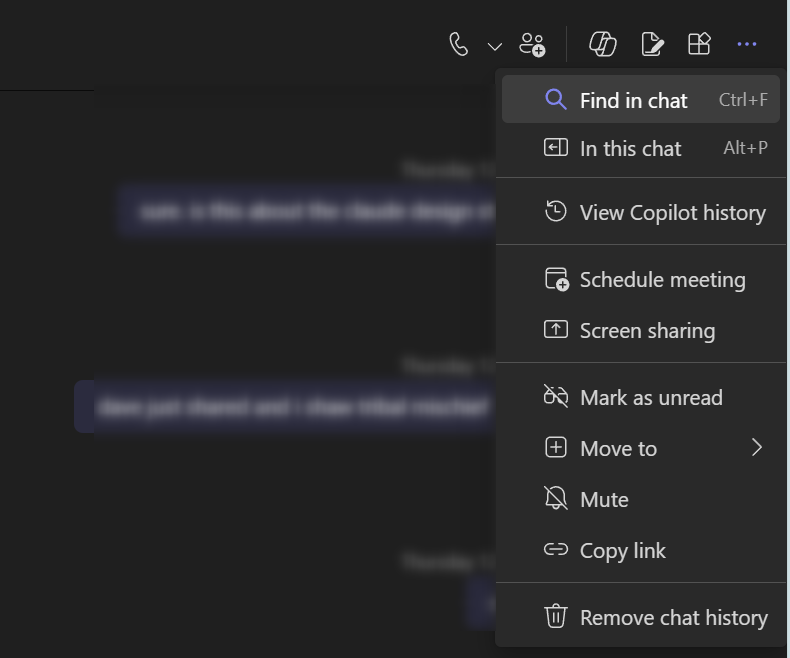

(Note: The exact tab labels — “Files,” “Photos,” or “Media” — may vary slightly depending on your Teams client version or OS.)
In a Channel
- Navigate to the channel where the image was shared.
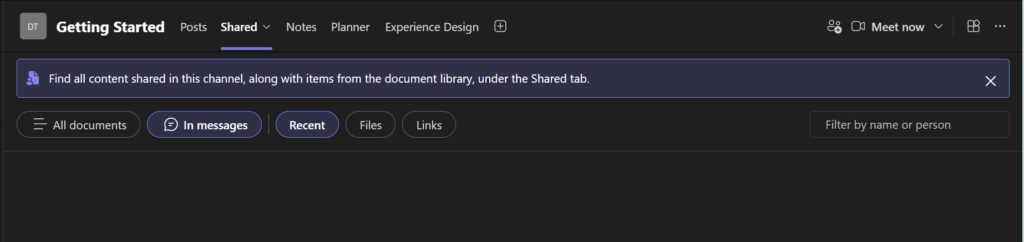
- At the top of the channel, you’ll see tabs like Posts, Files, Wiki, etc.
- Click Files to see all shared attachments — you can filter or sort here.
- For images specifically: go back to Posts, then use Ctrl+F (Windows) or Cmd+F (Mac) to open in-channel search, and look for filter options to narrow by media type.
- Another approach: use the Teams-wide search bar at the top of the app. Type a keyword you remember from around the time of the image (e.g., the person’s name, a project name), then filter results by “Messages” and look for the image in context.

📌 Admin note: All of these options use standard Teams functionality — no admin configuration needed. However, if your organization has strict retention or compliance policies, some older messages or files may not be searchable.
Quick Tips
- Use the Files tab first — It’s the fastest path to all shared images in a chat or channel, even if it shows documents too.
- Remember who sent it? — Filter by sender name in the search results to narrow things down fast.
- Can’t find it in Teams? — Images shared in Teams are often stored in OneDrive or SharePoint. Check the channel’s SharePoint document library under the channel’s Files tab for a deeper archive.
- Use the date filter — If you roughly remember when the image was shared, use search filters to limit results to a specific date range.
- Pin important screenshots as tabs — If you know you’ll need an image again, pin the message or save the file to the channel’s Files tab so it’s easy to retrieve later.
Best Used For…
- Retrieving screenshots from past project discussions
- Finding a diagram or mockup shared in a busy channel
- Locating a photo from a team event or meeting
- Tracking down a signed document image or approval screenshot
- Reviewing all media shared in a long-running chat thread
When It Won’t Quite Cut It
- Very old messages — Depending on your organization’s message retention policy, older images may no longer be accessible directly in Teams. Check with your IT admin.
- If the image was shared via a link (not uploaded directly) — It won’t appear in the Files tab. You’ll need to track down the original URL.
- Large channels with lots of files — The Files tab can get cluttered. Good naming conventions and folder structure in the linked SharePoint library make a big difference here.
- It’s not pixel-level image search — Teams won’t let you search within an image (like reading text in a screenshot). For that, you’d need something like Microsoft Lens or a third-party OCR tool.
Wrapping It Up
Finding images in Teams doesn’t have to mean an archaeological dig through your message history. Between the Files tab, in-chat media views, and the global search bar with filters, you’ve got a few solid paths to track down that screenshot before the meeting starts.
The trick is knowing which tool to reach for — and now you do.
This week, try it on a real channel: open the Files tab in your busiest project channel and see what’s been shared over the last month. You might be surprised what’s sitting there.
Honestly? It’s kind of satisfying to see months of shared work organized in one clean list.
📖 Official docs: Search for messages and more in Microsoft Teams — Microsoft Support