
Copilot Cowork Can Build Corporate-Branded PowerPoint Decks — and That’s a Much Bigger Deal Than It Sounds

📣 Rollout status: Copilot Cowork is rolling out as part of Microsoft 365 Copilot Wave 3, beginning May 2026. Access is currently available through Microsoft’s Frontier program. Check your Microsoft 365 Message Center for availability in your tenant.
⚠️ License note: Copilot Cowork is part of Microsoft 365 Copilot (Wave 3) and requires a Microsoft 365 Copilot license. The PowerPoint Agent (a related but separate capability) is available to Microsoft 365 users with or without a Copilot license. Check with your IT admin to confirm what’s enabled in your environment.
Ask anyone who’s used Copilot in PowerPoint over the past couple of years what frustrates them most, and you’ll get the same answer pretty quickly: it ignores your brand.
You ask for a presentation. You get slides. The content might even be decent. But the fonts are wrong, the colors are off, and the layout looks like a default Office theme from 2018. For a quick personal project, fine. For anything going to a client, an executive, or an external audience? It’s usually straight to the formatting rework — which kind of defeats the point of having an AI assistant.
That’s the gap Copilot Cowork is built to close. Here’s what it is, how it works, and why it’s one of the more meaningful upgrades to come out of Copilot Wave 3.
So… What Is Copilot Cowork?
Cowork is a new capability in Microsoft 365 Copilot — introduced in Wave 3 — that moves Copilot beyond single-turn responses and into genuine multi-step, multi-action work.
Think of previous Copilot as a very smart autocomplete. You ask. It responds. Done. Cowork is more like delegating to a capable colleague: you give it a task, it breaks that task into steps, executes them in sequence, keeps you in the loop, and produces a finished output — not a draft you have to assemble yourself.
For PowerPoint specifically, that shift is significant. A real demo shown during the Wave 3 launch had someone prompt Cowork with: “Create an executive summary of the last three AI Corner meetings, use our brand template, and build a slide deck.” Cowork pulled the meeting content, structured it into a presentation, and built the whole deck using the company’s actual fonts, logos, and color scheme. The result, by the account of the people who saw it, didn’t look AI-generated. It looked like something a team member built.
That’s the difference. Not just content generation — execution, with brand context baked in from the start.
Why Brand Consistency Has Been Copilot’s Achilles’ Heel (Until Now)
To understand why this matters, it helps to understand why standard Copilot in PowerPoint has struggled with branding:
- It creates, but doesn’t inherit. Classic Copilot builds presentations largely from scratch, which means it defaults to generic themes unless you explicitly start from a branded template file — and even then, it doesn’t always reliably apply your specific layouts and slide masters.
- It’s a single-step operation. Copilot responds to one prompt and produces one output. It doesn’t reason across your org’s files, past meetings, or brand standards to inform what it builds.
- Context is shallow. Without Work IQ — the intelligence layer introduced in Wave 3 — Copilot didn’t know your company, your role, or your preferences. It knew what you told it right now.
Cowork changes all three of those things. It’s multi-step, it has organizational context through Work IQ, and — critically — it can be directed to use your actual corporate template from the start, not as an afterthought.
Why This Is Worth Getting Excited About
- Brand compliance without manual fixing. Point Cowork at your branded
.pptxtemplate and it uses it — layouts, fonts, logo placement, color palette. Not a generic approximation of it. - Multi-step execution, not one-shot guessing. Cowork reasons across your prompt, breaks it into actions, and builds toward the finished output. Each step is visible, so you can redirect if something goes sideways.
- Enterprise-grade, not consumer-grade. This all operates inside Microsoft 365’s security and governance framework. Sensitivity labels are respected, your data isn’t used to train models, and IT has visibility and control through Agent 365.
- Powered by Anthropic models inside Microsoft. Cowork is built in partnership with Anthropic — bringing Claude’s agentic reasoning capabilities into Copilot without pulling your data outside Microsoft’s environment. Best of both, governed by one.
- Your documents live where they belong. Unlike third-party AI tools that download files locally or send them to external services, outputs created by Cowork stay in your Microsoft 365 environment — immediately protected, shareable, and subject to your org’s access policies.
How to Use Copilot Cowork to Build a Branded PowerPoint Deck
📌 Admin note: Cowork is rolling out through the Frontier program in Wave 3. Your IT admin may need to enable access and ensure Anthropic AI models are connected. If you don’t see Cowork or the PowerPoint Agent in your Copilot Chat, start there.
Before you start: Make sure your branded PowerPoint template is saved somewhere accessible in your Microsoft 365 environment — ideally in SharePoint or OneDrive so Cowork can reference it.
- Open Microsoft 365 Copilot Chat — in the web app, Teams, or the Microsoft 365 desktop app.
- Find the Cowork or PowerPoint Agent entry point. Look for it in the Agents or Tools menu within Copilot Chat.
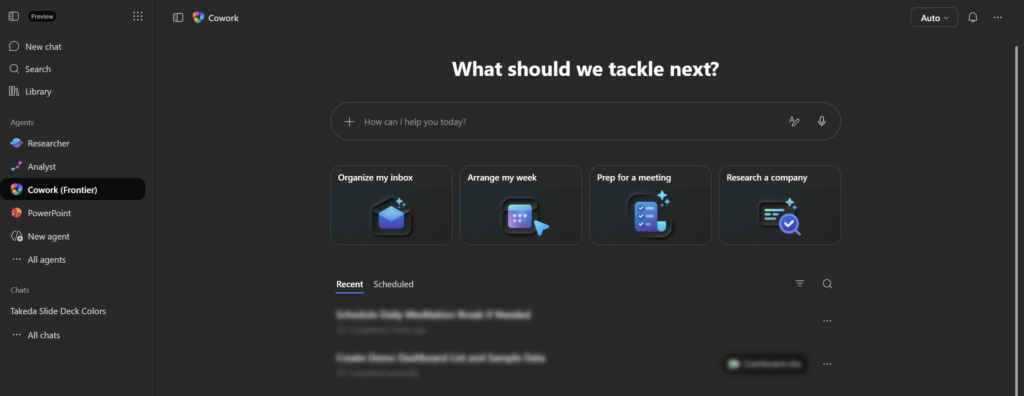
3. Write a clear, specific prompt. The more context you give, the better the output. Reference your template explicitly: “Create a 10-slide executive summary of our Q2 business review. Use our corporate PowerPoint template stored in [SharePoint/OneDrive location]. Include a title slide, agenda, three content sections with talking points, a data summary slide, and a closing slide.” Cowork may ask a few clarifying questions — audience, tone, length, visual style — before it starts building. Answer them. They’re worth it.
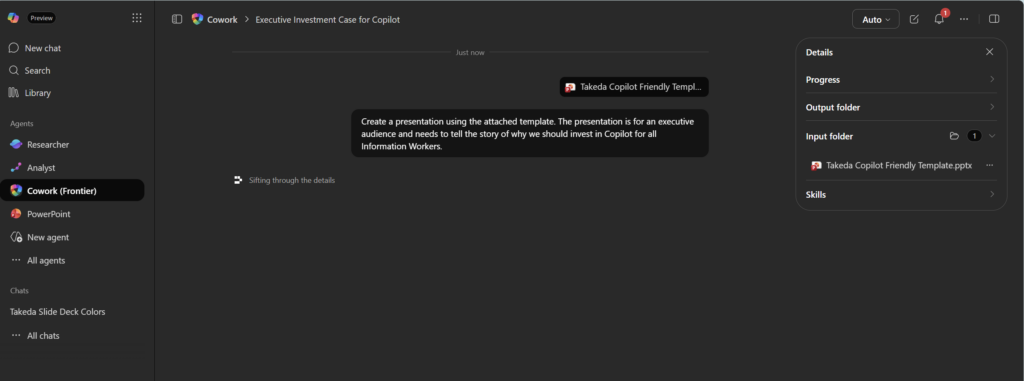
4. Watch the progress, not just the output. Cowork shows you what it’s doing as it works — pulling content, reasoning over structure, building slides. This is where you can steer it if something looks off before it finishes. The initial build can take some time.
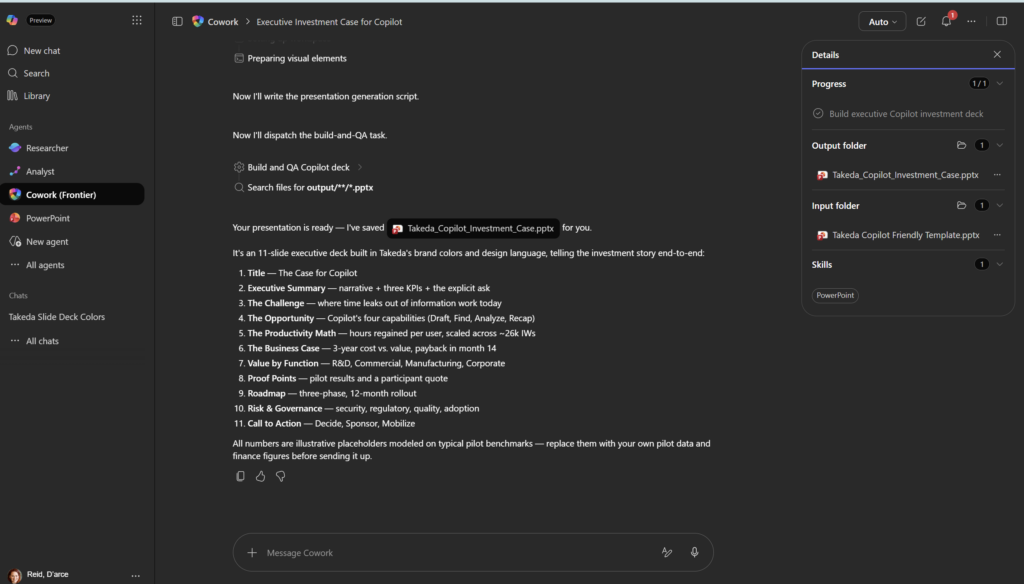
5. Review the draft deck. Cowork will surface the finished presentation for you to review — in the Copilot Chat pane, with a direct link to open in PowerPoint.
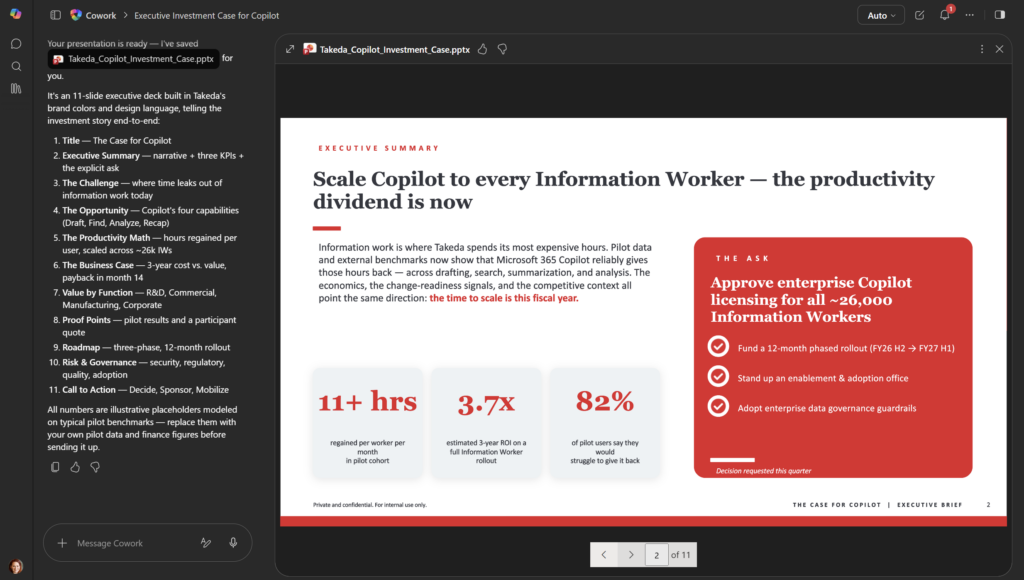
6. Hand off to PowerPoint for final touches. Open the deck in PowerPoint and use Copilot’s Agent Mode inside the app for any further refinement — tweaking slide content, adjusting layouts, or adding speaker notes.
7. Save and share as normal. The deck lives in your Microsoft 365 environment. Share it from OneDrive or SharePoint the way you always would.
Quick Tips
- Give Cowork a content outline, not just a topic. “10 slides about Q2 results” is vague. A rough bullet outline of what you want on each slide leads to much stronger output.
- Store your template somewhere Copilot can reach it. OneDrive or SharePoint — not buried on a local drive. If Copilot can’t find it, it can’t use it.
- Name your slide layouts clearly in the template. “Title Slide,” “Content + Image,” “Section Divider” is infinitely more useful than “Layout 4.” Cowork uses layout names to make smart choices.
- Use it for recurring deck types. Monthly business reviews, project kickoffs, client onboarding presentations — anything you build regularly is a perfect candidate. Draft the prompt once, reuse it.
- Test before the high-stakes moment. Run a 3-slide version of your most complex template through Cowork before you need it for a major presentation. Complex slide masters with heavy animations can behave unpredictably. Better to find that out on a Tuesday than on deadline.
Best Used For
Cowork shines when the work has some genuine complexity to it — not just “make me a pretty slide,” but “pull together context from multiple places, apply our standards, and produce something ready to use.” Great use cases include:
- Executive and leadership briefings where brand standards are non-negotiable and time is short
- Client-facing presentations that need to look polished and on-brand from slide one
- Recurring reports (QBRs, project status updates, monthly reviews) where structure is known and speed matters
- Teams without dedicated designers who need professional-looking decks without a design-review cycle
When NOT to Use It / Things to Know
Cowork needs a good template to do good work. If your branded .pptx has a messy slide master, inconsistent placeholder logic, or layouts that don’t behave properly, Cowork will faithfully reproduce those problems. Fix the template first.
It’s still early. Cowork is a Frontier program feature rolling out in 2026. Capabilities are evolving quickly, and what it can and can’t do today will look different in six months. Keep an eye on your Message Center for updates.
Complex animations may need manual review. Basic transitions generally carry through fine. Elaborate animated builds or motion paths are worth verifying after Cowork runs.
This isn’t a design tool. Cowork executes your intent within your template — it’s not reimagining your slide aesthetics or offering creative direction. Come in with a clear content structure and let the template do the visual heavy lifting.
IT governance matters here. Cowork runs inside Microsoft’s security framework, which is the good news. But make sure your IT team has reviewed which agents are enabled and that Agent 365 is configured appropriately for your organization before teams start delegating work to it at scale.
Wrapping It Up
The brand consistency problem with AI-generated PowerPoint decks isn’t a minor annoyance. It creates real rework, erodes trust in AI tools, and often means someone still has to spend an hour “cleaning up” before a deck goes anywhere important. For a lot of organizations, that hidden rework is the reason AI-assisted slide creation never quite stuck.
Copilot Cowork tackles that at the source — by treating your brand template as a starting point rather than an afterthought, and by executing multi-step work the way a capable colleague would rather than producing a one-shot output and calling it done.
It’s not magic, and it’s not fully baked yet. But the direction is clear, and the early results are genuinely impressive.
Your try-it challenge this week: Identify one recurring presentation your team builds — a monthly report, a project status update, a client briefing — and write a Cowork prompt for it that explicitly references your branded template. If Cowork is available in your tenant, run it and time the gap between prompt and “good enough to share.” Compare that to your normal process. I’d be surprised if you weren’t at least a little impressed.