
Get Better Answers from Copilot Chat by Telling It Exactly Where to Look

📣 Rollout status: The / grounding command in Microsoft 365 Copilot Chat is currently available to Microsoft 365 Copilot users. Availability may vary by organization. Check with your IT admin if you’re not seeing it yet.
⚠️ License required: Microsoft 365 Copilot add-on — not included in standard Microsoft 365 plans. If you’re not sure whether you have it, your IT admin can confirm.
Have you ever asked Copilot a question and gotten back an answer that was… technically something, but not quite what you needed?
Maybe it pulled from an old policy document. Maybe it summarized a project page from two years ago. Maybe it just felt a little off — like it was answering a slightly different question than the one you asked.
Here’s the thing: Copilot is only as good as where it looks. And by default, it’s searching across your entire Microsoft 365 environment — emails, documents, Teams chats, SharePoint pages, all of it. That’s a lot of ground to cover.
The good news? There’s a dead-simple trick that changes everything: the / command.
Here’s what it is, how to use it, and why it’ll make your Copilot answers so much more useful.
So… What Does the / Command Actually Do?
When you type / in the Copilot Chat prompt box, a menu pops up that lets you pick a specific SharePoint site or list. Once you select one, Copilot focuses its answer on that content — and nothing else.
Think of it like the difference between asking a colleague “Hey, what’s our refund policy?” versus handing them the Customer Service Handbook and saying “Check this and let me know.”
The second version gets you a faster, more accurate, more trustworthy answer. That’s exactly what grounding does.
Why This Makes Such a Difference
- Answers you can actually trust — When Copilot knows exactly where to look, it stops guessing. You get answers drawn from the right source, not a mix of whatever it happened to find first.
- Your SharePoint lists finally talk back — Got a tracker for project requests, a vendor list, or a schedule in SharePoint? You can now ask questions about it in plain English. “Which requests are still open?” “Who’s the contact for Vendor X?” It just works.
- Less digging, more doing — Instead of clicking through SharePoint pages or scrolling through search results, you ask one question and get a direct answer.
- Great for any team hub — Whether you’re in HR, Finance, Operations, or Sales, if your team has a SharePoint site, you can ground Copilot to it and get answers fast.
How to Use the / Command in Copilot Chat
📌 Heads up: If you don’t see the / command, your organization may still be rolling out Microsoft 365 Copilot. Check with your IT admin.
- Open Copilot Chat — Go to m365.cloud.microsoft or click the Copilot icon in your Microsoft 365 apps.
- Click into the message box at the bottom of the screen — where you’d normally type your question.
- Type
/— A menu will appear showing SharePoint sites and lists you’ve recently visited.
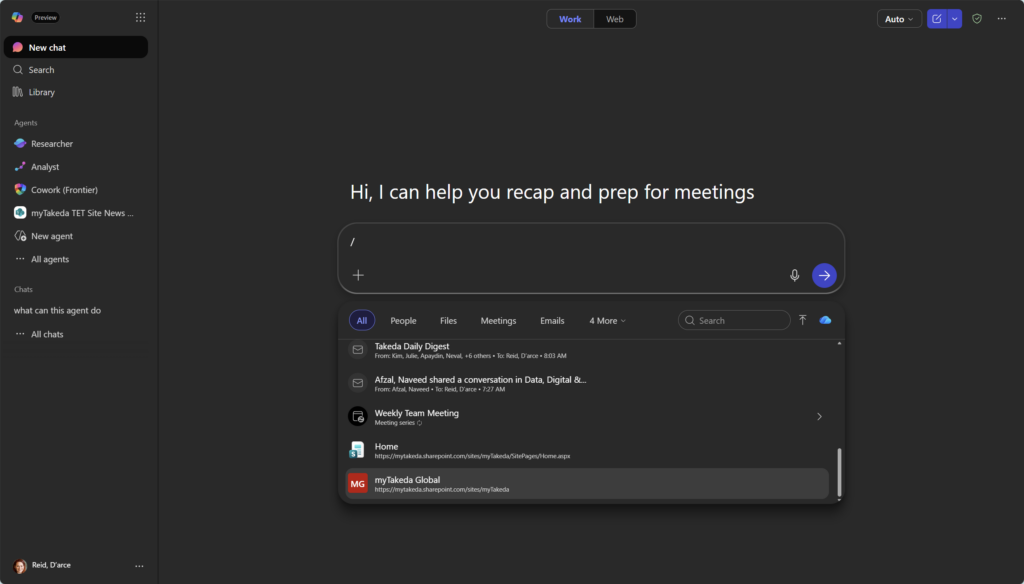
3. Find and select the site or list you want — Start typing its name to search. You can choose:
- A SharePoint site — like your team’s hub, your department intranet, or a project site
- A SharePoint list — like a request tracker, an inventory list, or a project status board
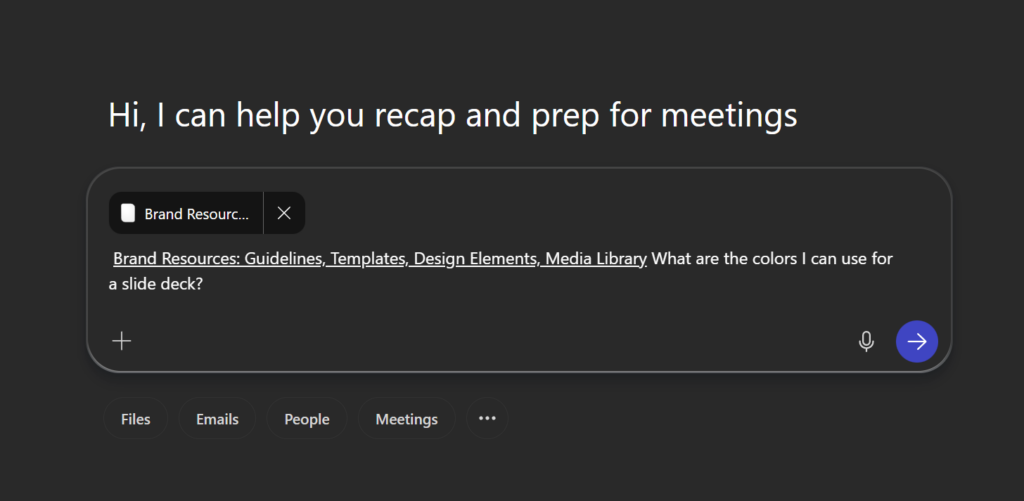
4. Type your question after it’s selected — The site or list name will appear as a tag in your prompt, and you just keep typing your question right after it.
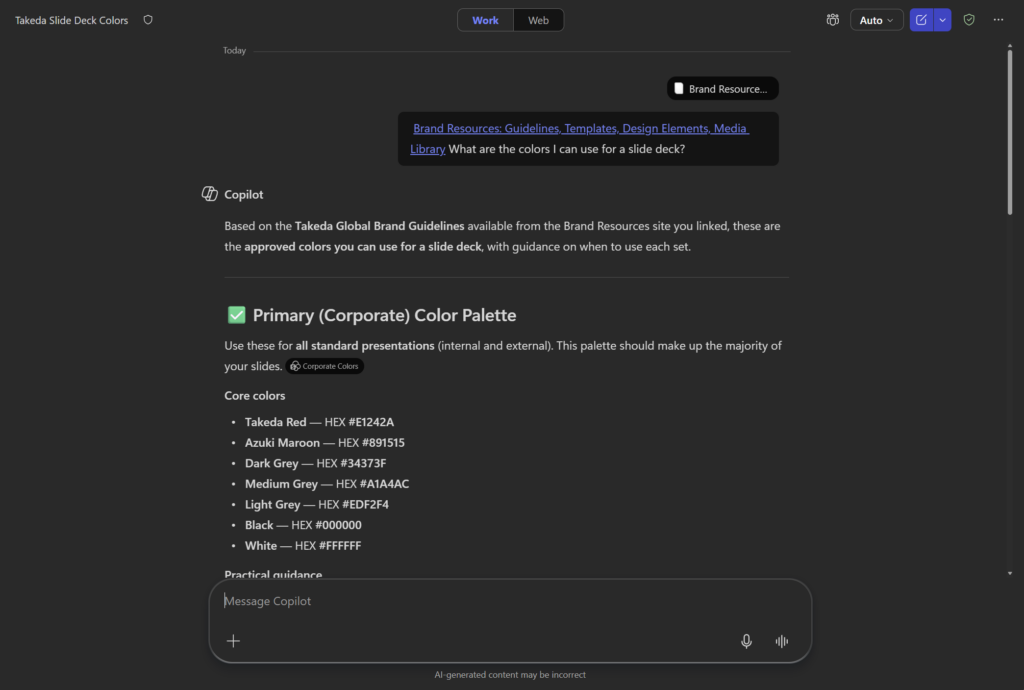
5. Press Enter and read your answer — Copilot will respond using content from that specific site or list, and it’ll show you exactly which pages or items it pulled from.
(Steps may look slightly different depending on your organization’s setup.)
Quick Tips
- Use a site for “how do I” questions. Things like “What’s the process for onboarding a new vendor?” or “Where do I submit a support request?” — ground to your team or department site and ask away.
- Use a list for “what’s the status” questions. A SharePoint list with tidy data is surprisingly powerful. “Show me all tasks marked as overdue” or “Who owns the Northwind account?” become one-second answers.
- You’ll only see content you already have access to. Copilot respects your organization’s permissions — it won’t surface anything you couldn’t open yourself. If something seems missing, it may just be outside your access level.
- The search in the picker isn’t always perfect. If your site doesn’t show up right away, try typing a different word from its name.
- Switch sources mid-conversation. If you want to ask about a different site, just type
/again to re-ground your next question.
This Is Perfect For…
- Finding answers to policy or process questions without hunting through pages of documentation
- Getting a quick status update from a project tracker or request list
- Helping a new teammate get oriented on a team site: “What are the key things I need to know about this project?”
- Catching up on a team site when you’ve been out of the loop for a while
- Pulling specific details from a list without scrolling through every single row
A Few Things to Keep in Mind
Copilot is only as good as the content it’s reading. If the SharePoint site you ground to has outdated or incomplete information, that’s what Copilot will work with. It’s worth knowing how up to date your site actually is before relying on it for anything important.
Lists work best when they’re tidy. A list with clear column names (“Status,” “Owner,” “Due Date”) and consistent data gets you great answers. A list that’s been filled in inconsistently over the years may give you patchy results. If answers feel off, the data is usually the culprit — not Copilot.
You can’t ground directly to a document library (at least not yet as of this writing). If you need Copilot to look inside a specific library, ground to the site it lives on and mention the library name in your question — that gets you pretty close.
Wrapping It Up
The / command is one of those features that sounds small but genuinely changes how you work with Copilot every day.
Instead of asking a vague question and hoping for the best, you’re pointing Copilot at exactly the right place — and getting answers you can actually use.
This week, try it with a site or list you already know well. Pick your team’s SharePoint hub, a tracker you check often, or your department’s intranet page — and ask it a question you’d normally go searching for yourself. See how it feels to get that answer in seconds instead of minutes.
Honestly? Once you try it, going back to hunting through pages on your own feels surprisingly old-fashioned.