

⚠️ License required: Microsoft 365 Copilot add-on — not included in standard Microsoft 365 plans. Check with your IT admin if you’re not sure what you have.
You’ve rolled out Microsoft 365 Copilot. Your team is prompting away. And then someone asks Copilot to summarise the latest project documentation — and it either misses files, pulls the wrong version, or returns a vague non-answer that doesn’t match what’s actually in your library.
Sound familiar?
Here’s the thing: Copilot isn’t broken. It’s just working with what it’s got. And if your document libraries are a sea of undated files with names like Final_v3_ACTUAL_USE THIS.docx, no AI in the world is going to give you a clean, confident answer.
The good news? This is fixable — and the fix is metadata. Here’s what’s happening under the hood, why it matters, and how to set your libraries up so Copilot can actually do its job.
What Copilot Is Actually Doing When You Ask It a Question
When you ask Copilot something like “What’s the current status of the Henderson project?”, it doesn’t search your SharePoint libraries the way a human would — scrolling, opening files, reading through. It queries Microsoft Graph, which indexes your content, and then uses that index to pull the most relevant information into its response.
Think of Microsoft Graph as Copilot’s research assistant. It can find files fast — but it can only surface what’s been properly described and tagged. Metadata is essentially how your documents introduce themselves to that assistant.
A file named Report_March.docx with no metadata is a mystery box. A file named Quarterly Report — March 2025 tagged with a document type of Report, a department of Finance, a status of Approved, and a project tag of Henderson is a well-labelled, easy-to-find document that Copilot can confidently include in its answer.
That’s the whole game.
The Hidden Cost of “Good Enough” File Management
Most SharePoint libraries grow organically — and that’s fine for humans who know where things live. We remember that “the contract” is in the Clients folder in Legal, and we know that Sarah renamed it when she revised it in November.
Copilot doesn’t have that institutional memory. It has the index.
So if your libraries rely on folder structure and naming conventions instead of actual metadata columns, you’re asking Copilot to navigate without a map. It can still find something — but it may miss documents, surface outdated versions, or respond with low confidence because the signals just aren’t there.
This is especially painful for:
- Version-heavy libraries — When there are five versions of a policy doc and none are marked Current or Approved, Copilot has no way to prefer the right one.
- Cross-departmental content — When a document lives in one team’s library but is relevant to another, metadata is the only way that relevance gets surfaced.
- Time-sensitive documents — Without proper date or status fields, Copilot can’t tell “recent” from “old”.
The Columns That Actually Move the Needle
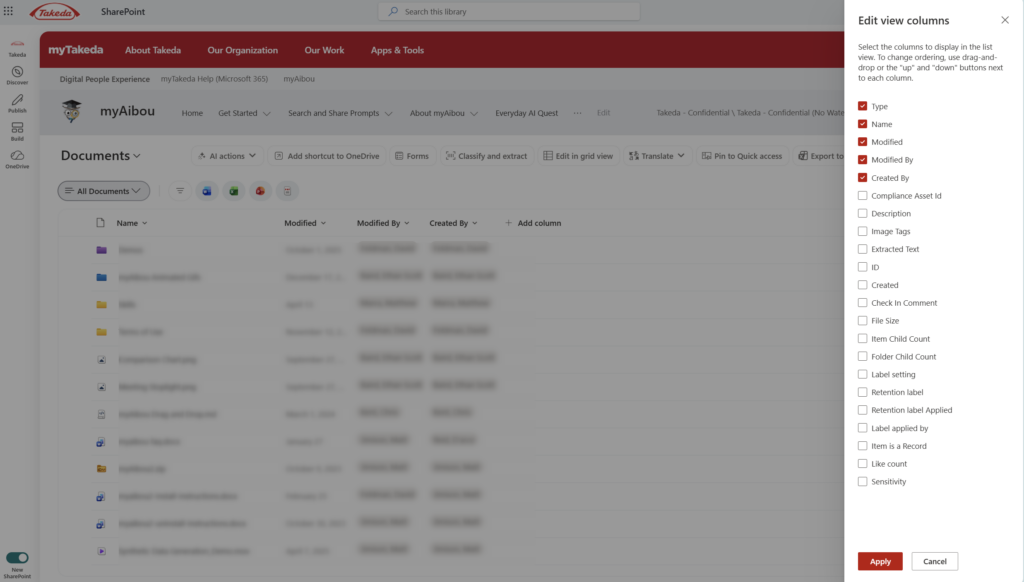
You don’t need to go overboard. A bloated metadata schema that nobody fills out is worse than a simple one people actually use. Here are the columns worth adding to most document libraries if you want Copilot to return better answers:
- Document Type — Is this a policy, a report, a contract, a proposal? Use a choice column with consistent options.
- Status — Draft, In Review, Approved, Archived. This one is huge. It lets Copilot (and humans) immediately filter to the right version.
- Department or Owner — Who owns this content? Useful when users ask department-specific questions.
- Project or Topic Tag — A managed metadata column tied to your term store is ideal here; a simple text column is better than nothing.
- Effective Date or Review Date — Especially important for policies, procedures, and contracts. A document with an Effective Date column is a document Copilot can reason about temporally.
📌 Admin note: Managed metadata columns (the really powerful, term-store-backed ones) require your IT admin or SharePoint admin to set up the term store first. Worth the conversation if you’re managing content at scale.
Getting Metadata to Actually Stick
Here’s the honest gotcha: metadata only works if people fill it in. And people won’t fill it in if it’s a pain.
A few things that genuinely help:
- Set default column values at the library or folder level. If 90% of what goes into your Policies library is of type Policy, set that as the default so uploaders don’t have to think about it.
- Use required fields sparingly. Making every column mandatory feels thorough — but it causes people to upload files to their OneDrive instead, which is worse. Pick the two or three columns that matter most and require those.
- Try Microsoft Syntex if you’re managing high volumes of documents. Syntex can automatically classify documents and extract metadata from content using AI — so the model reads the document and tags it for you. It’s a pay-as-you-go add-on, but for compliance-heavy or document-heavy organisations, it’s a genuine game-changer.
- Retroactively tag key libraries. You don’t need to boil the ocean. Pick your top three or four most-queried libraries — the ones your team is most likely to ask Copilot about — and focus metadata clean-up there first.
Moments Where This Makes a Real Difference
To make this concrete: here are three scenarios where good metadata turns a mediocre Copilot response into a great one.
“What’s our current remote work policy?” With no metadata, Copilot might return three versions of the policy document and hedge. With a Status column set to Approved on the right file, it finds the one and gives you a confident summary.
“Show me all approved proposals from Q1 2025.” Without metadata, this query returns everything with “proposal” in the name. With Document Type = Proposal, Status = Approved, and a date column in place, Copilot can actually answer this precisely.
“What projects is the marketing team working on?” If your project documents are tagged with Department = Marketing and a Project column, Copilot can pull a coherent summary. Without that, it’s guessing based on file names and folder paths — which is a rough game.
A Few Things to Watch Out For
- Metadata doesn’t fix permissions. Copilot only sees what the user asking the question has access to. If a library is locked down, its content won’t appear in Copilot’s answers — regardless of how beautifully tagged it is. This is by design and a good thing, but worth knowing.
- Sensitive labels interact with Copilot. If you’ve applied Microsoft Purview sensitivity labels to documents, Copilot respects those policies. A document labelled Confidential won’t necessarily appear in a general query.
- The index isn’t instant. Newly uploaded or recently tagged files can take a little time to appear in Copilot’s results as the Graph index updates. Don’t panic if a just-uploaded document doesn’t show up immediately.
The Payoff Is Real — But It Takes Intentionality
Metadata isn’t glamorous. It’s not the part of a Copilot rollout anyone gets excited about. But it’s the difference between a Copilot that impresses people and one that frustrates them.
The best way to think about it: Copilot is a brilliant assistant who can only work with the information they’ve been given. Give them structured, well-labelled information — and they’ll return structured, well-reasoned answers. Give them a filing cabinet full of mystery folders, and even the best AI will shrug.
Your challenge this week: pick one library your team relies on most and audit it. How many documents have a Status column filled in? How many have a Document Type? If the answer is “very few,” that’s your starting point. Add two columns, set sensible defaults, and tag the top 20 most-used files. That’s it. That’s enough to start seeing a difference.
Honestly? Watching Copilot suddenly give sharper, more confident answers after a metadata tidy-up is a little satisfying — in a very nerdy way.