
FAQ Web Part + Copilot: Keeping Your Intranet FAQ Actually Accurate

📣 Rollout status: AI-suggested answers for the SharePoint FAQ web part are rolling out to Microsoft 365 tenants. Check your Microsoft 365 Message Center for availability in your tenant.
⚠️ License required: Microsoft 365 Copilot add-on — AI-suggested answer features require a Copilot license and are not included in standard Microsoft 365 plans. The base FAQ web part is available without it. Check with your IT admin if you’re unsure what you have.
You know that FAQ page someone built three years ago during the big office move?
The one that still says “contact Dave in Facilities” even though Dave left in 2022? The one where half the answers link to a document that was archived, renamed, and moved twice since then?
Yeah. That one.
Keeping intranet FAQ content accurate is one of those tasks that seems like it should be easy — someone writes the questions, someone writes the answers, done — but in practice it becomes a slow-motion decay problem. Content gets stale, questions pile up that nobody’s added yet, and employees quietly stop trusting the page altogether.
Good news: Microsoft has been quietly adding AI-suggested answer capabilities to the SharePoint FAQ web part, and it’s a genuinely useful tool for keeping things fresh — if you use it right. Here’s what it is, how it works, and what to actually watch out for.
So… What Is the FAQ Web Part Doing with AI?
The SharePoint FAQ web part has been a staple of intranet pages for a while — accordion-style questions and answers, easy to add to any page, no coding required.
The newer AI layer builds on top of that. When someone types a question into your FAQ search box that isn’t already in your list, Copilot can suggest an answer by pulling from content already published on your SharePoint site — pages, documents in libraries, news posts, and so on.
Think of it like this: your FAQ page is a carefully curated list, but your SharePoint site is a much bigger body of knowledge. The AI-suggested answers feature acts as a bridge — it tries to surface relevant answers from your existing content when the curated list comes up short.
It’s not generating answers out of thin air. It’s grounding its responses in your content. That distinction matters a lot for accuracy and trust.
Why This Is a Bigger Deal Than It Sounds
- It surfaces answers you already have — Your IT team may have a perfectly good troubleshooting guide buried in a document library. Without this feature, an employee asking a question on the FAQ page would never find it. Now they might.
- It reveals gaps you didn’t know existed — When questions come in that can’t be answered (even by AI), that’s signal. Your FAQ is missing something people actually need. That’s incredibly valuable editorial feedback.
- It reduces the “Dave in Facilities” problem — If the underlying documents get updated, the AI-suggested answers can reflect those updates — unlike a static FAQ answer that nobody remembers to touch.
- It reduces help desk load — Employees who get a decent answer on the intranet don’t send an email. Even a partial answer that points them to the right document cuts friction significantly.
- It keeps the page feeling alive — A FAQ page that visibly responds to what people are asking feels maintained, even when it’s partially automated. That perception matters for adoption.
How to Set It Up
📌 Admin note: Your IT admin will need to ensure Copilot is enabled for your tenant and that the SharePoint FAQ web part is available in your site. Some tenants may also require SharePoint admins to configure which site content the AI draws from.
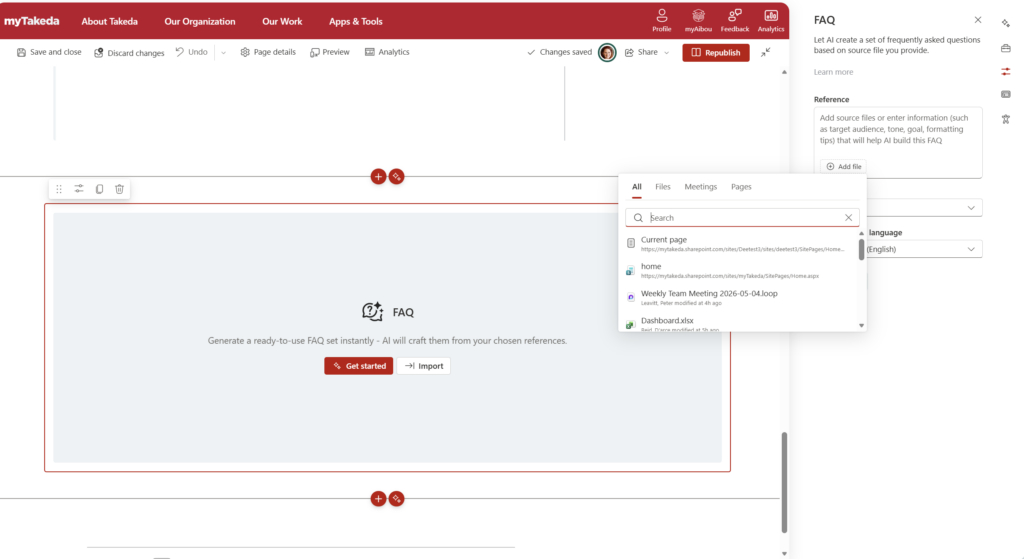
- Open your SharePoint page in edit mode and add or locate your FAQ web part.
- Open the web part property panel by selecting the web part and clicking the pencil/edit icon.
- Enable the AI-suggested answers toggle — it typically appears under an “AI” or “Copilot” section in the panel.
- (Note: the exact label and location may vary slightly depending on your tenant rollout and SharePoint version.)
- Select the content scope — decide whether Copilot should draw from:
- The current site only
- A connected hub site and its associated sites
- Specific document libraries or pages
- Publish and test — Search for questions your FAQ doesn’t currently answer. See what comes back.
- Review suggested answers regularly — This is the step most people skip and then regret. More on this below.
Quick Tips
- Your content quality is the ceiling. If your SharePoint pages are thin, outdated, or poorly written, AI-suggested answers will be thin, outdated, or confusing. Garbage in, garbage out — but now with a confident tone.
- Add questions proactively when you see gaps. If employees keep asking about something and the AI is awkwardly piecing together an answer from a 2019 policy doc, just… write the real answer and pin it in the FAQ.
- Tag your best documents. Content that’s well-titled, has a good summary, and uses consistent terminology surfaces better. This is a good nudge to clean up your document libraries.
- Don’t hide the “this is AI-generated” label. Employees will trust the page more, not less, if they know what’s curated vs. what’s suggested. Transparency = credibility.
- The FAQ web part isn’t a chatbot. It doesn’t carry context between questions or handle follow-ups. If employees need a back-and-forth experience, a full SharePoint Agent is probably the better tool.
Best Used For
- HR hubs with frequently asked benefits, PTO, or onboarding questions
- IT service desk pages where troubleshooting docs already exist but aren’t surfaced well
- Policy or compliance sites where answers change periodically
- Department intranets where a small team maintains content but can’t anticipate every question
When NOT to Use It (or What to Watch Out For)
This is the part that doesn’t make it into the marketing materials.
Don’t treat “AI-suggested” as “verified.” The AI is drawing from whatever’s on your site. If your HR policy doc says one thing and your FAQ says another, the AI might serve up the policy doc answer — which could be correct, outdated, or just different enough to cause confusion. You need a content owner reviewing flagged answers regularly.
Scope creep is a real risk. If you set the AI to draw from your full hub and someone published a draft document that was never meant to be public-facing, it might get surfaced. Review your content permissions and publication states before enabling hub-wide scope.
It won’t solve a fundamentally disorganized intranet. If your SharePoint environment has years of accumulated chaos — misnamed files, abandoned sites, duplicate documents — the AI will reflect that chaos. Don’t turn this feature on and expect it to compensate for a content governance problem.
Rollout and behavior can vary by tenant and license tier. Some organizations will see this fully featured; others may see a limited version or nothing yet. Check your Message Center and don’t assume your experience matches what you read in a blog post — including this one.
Wrapping It Up
The FAQ web part’s AI-suggested answers feature is a genuine step forward for intranet teams who are tired of playing catch-up with stale content. It’s not magic — it’s more like a smart index on top of content you’ve already published — but when it works well, it works really well.
The teams that will get the most out of this are the ones who treat it as a complement to good content hygiene, not a replacement for it. Use the gaps it reveals as a content roadmap. Set a monthly reminder to review suggested answers. Keep your scope narrow until you’re confident in your content quality.
This week, try enabling AI-suggested answers on one FAQ page — ideally your HR or IT page where you have solid, current documentation — and search for five questions your FAQ doesn’t explicitly cover. See what comes back. That exercise alone will tell you a lot about both the feature and the state of your intranet content.
Honestly? The most valuable thing this feature does isn’t answering questions. It’s showing you which questions your intranet should be answering but isn’t. That’s the insight worth having.