

f you’ve ever stared at a blank SharePoint page wondering where do I even start, good news. SharePoint’s section templates let you drop in a fully structured, beautifully laid out page section in just a couple of clicks — no design skills required, no wrestling with the column grid, and no starting from nothing every single time.
It’s one of those features that sounds small until you use it, and then you wonder how you ever lived without it.
Here’s what it is, how it works, and why your intranet pages are about to look a whole lot better.
So… What Are Section Templates?
Think of a SharePoint page like a document made of stacked sections — each section can have one, two, three, or more columns, and inside those columns you drop web parts (text, images, quick links, news, etc.).
Section templates take that one step further. Instead of starting with an empty column layout and building everything up from scratch, you choose from a library of pre-built section designs — layouts that already have the right column structure, the right web parts dropped in, and placeholder content you can swap out immediately.
It’s like the difference between designing a flyer on a blank piece of paper versus starting from a Canva template. Same end result, drastically less effort.
Why This Is a Big Deal
- Consistency across your intranet — When everyone picks from the same set of templates, your pages stop looking like they were designed by twelve different people on twelve different days. A shared section library = a coherent brand.
- Speed for page authors — Your HR coordinator shouldn’t need to know what a vertical section with a full-width image banner looks like. They should just be able to pick “Hero Banner” and move on.
- Lower the barrier to great-looking pages — Section templates democratize design. You don’t need a SharePoint power user to build a polished communication page anymore.
- Reusable patterns for common content — Got a standard “Meet the Team” layout? A project update structure you use every week? Save it once, reuse it forever.
- Less chance of broken layouts — When people freestyle the column structure, things go sideways fast (literally — misaligned columns, weird spacing, web parts that don’t play nicely together). Templates sidestep most of that.
How to Use a Section Template on a SharePoint Page
📌 Admin note: Section templates are available in modern SharePoint pages. If your organization is still running classic SharePoint experience, your IT admin will need to modernize the site before this feature is available.
- Open or create a modern SharePoint page — Navigate to your site, click New > Page, or edit an existing page by clicking the pencil icon in the top right.
- Add a new section — Hover between existing sections (or at the bottom of the page) until you see the + button appear. Click it.
- Choose “From a template” — In the section layout picker that appears, you’ll see standard layout options (one column, two columns, etc.) alongside a Templates option. Click it.
[Screenshot: Section layout picker showing the Templates option] - Browse the template library — A panel slides in from the right showing available section templates. You can scroll through or search by keyword.
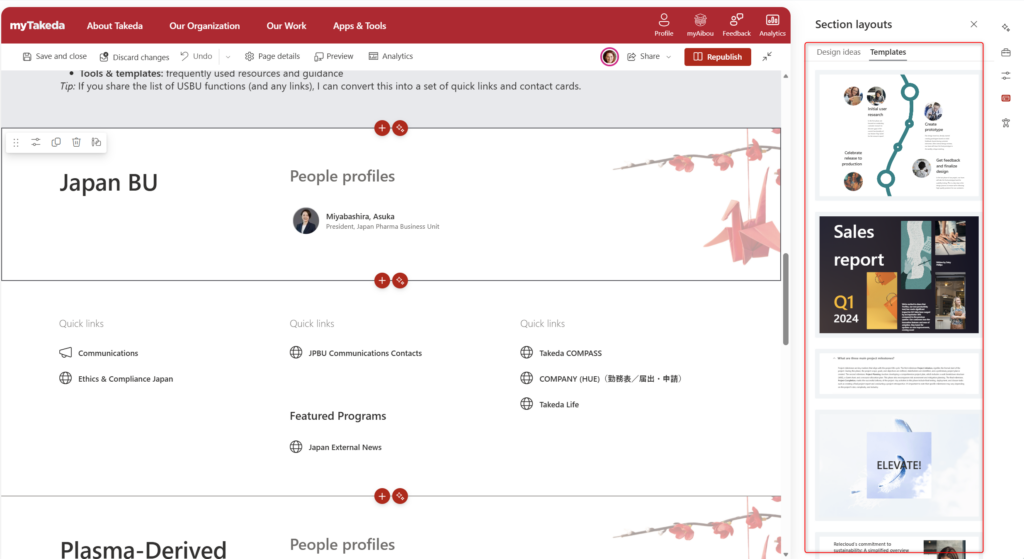
- Preview before you commit — Hover over any template to see a preview of what it looks like. When you find one you like, click it.
- Swap in your content — The section drops into your page with placeholder text, images, and web parts already in place. Click into each element and replace it with your real content.
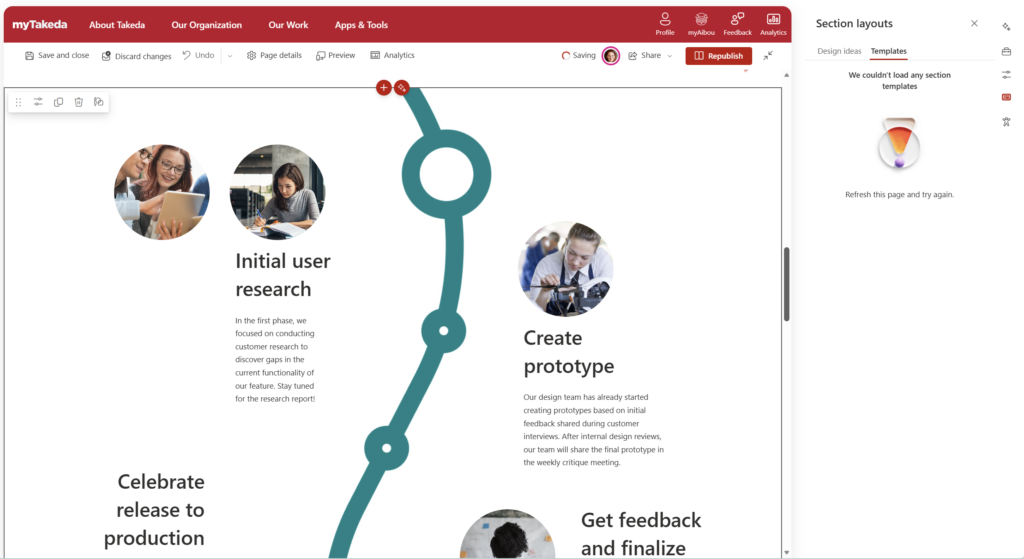
- Publish or save as draft — When you’re happy, hit Republish (or Save as draft if you’re not quite ready).
That’s it. Genuinely that simple.
How to Save a Section as a Template
Here’s where it gets really useful. You can save your own sections as custom templates — so that layout you spent an hour perfecting becomes a one-click option for yourself (and potentially your whole organization).
- Build and style the section you want to save — get the columns right, drop in your web parts, and set it up exactly as you’d want the starting point to look.
- Click the section handle (the six-dot grip icon that appears when you hover over a section on the left side).
- Select “Save as section template” from the options that appear.
- Give it a name — Something descriptive. “Project Update — 3 Column with Stats” is way more useful than “My Template.”
- Choose who can see it — You can save it for yourself only, or (if your admin has set it up) make it available to everyone on the site or across the organization. 📌 Admin note: Organization-wide section templates require a SharePoint admin to configure a central template library. Your IT team will know if this is in place.
Now that template shows up in the library every time you or your colleagues go to add a new section.
Quick Tips
- Name templates like a human would search for them. “Hero Banner — Dark Background” will get found. “Template 4” will not.
- Less is more in your template library. If you have 40 templates, people will stop using them. Curate to your 8–10 most useful layouts and retire the rest.
- Preview existing pages before building templates. If a page is already performing well or looks great, reverse-engineer it — save the sections that make it work.
- Templates are a starting point, not a straitjacket. Editors can still adjust the section after they drop it in. The template just gets them to the 80% mark.
- Revisit your template library after major rebrands. If your org updates its color palette or logo, your saved templates with hardcoded colors may need a refresh.
When to Use Section Templates — and When to Skip Them
Great for:
- High-traffic communication pages (HR hubs, company news, department portals)
- Pages that multiple people contribute to over time
- Any site where brand consistency matters
- Onboarding new page authors who aren’t SharePoint veterans
Probably overkill for:
- One-off internal project pages that only your team sees
- Simple document library pages where the focus is on files, not layout
- Sites with a single page author who’s already comfortable building from scratch
The honest take: if you’re running a proper intranet with more than a handful of sites, section templates pay for themselves in time saved within the first week. If you’ve got a single team site with five people who all know what they’re doing, it’s probably not a priority.
The Gotcha Worth Knowing
Section templates don’t carry over styling the way you might expect.
If you save a section that uses a colored background (say, a dark navy section), the background color is saved as part of the template. But text colors, font sizes, and web part-specific settings (like button styles in the Quick Links web part) may need to be re-applied depending on your site theme.
The safest approach: design your templates against your site’s default theme so they look right immediately after being dropped in. Templates built on a site with a dark theme may look off when used on a site with a light theme, and vice versa.
It’s a small thing — but it’s the kind of thing that trips people up when they try to share templates across sites.
Wrapping It Up
Section templates are one of those SharePoint features that are easy to overlook right up until the moment you start using them — and then they quietly become part of how you work every day.
They’re not flashy. They won’t blow anyone’s mind in a demo. But they solve a real problem: getting consistent, good-looking pages built faster, by more people, with less friction. And in the world of intranets, that’s actually kind of a big deal.
This week, try picking one section from a page you’re proud of and saving it as a template. Give it a clear name. Then, the next time you’re building a page, use it — and see how much faster the whole thing comes together.
Honestly? Once you’ve got a solid library going, building a new SharePoint page starts feeling less like work and more like assembling LEGO bricks. The fun kind.