
Never Miss a Meeting Detail Again: How Customizable Recap Summaries Work in Teams

📣 Rollout status: This feature is currently rolling out to Microsoft 365 tenants. Check your Microsoft 365 Message Center for availability — you may not have it yet depending on your update ring.
⚠️ License required: Microsoft Teams Premium — Intelligent meeting recap features, including AI-generated summaries and customizable templates, require a Teams Premium license. This is not included in standard Microsoft 365 or Teams plans. Check with your IT admin if you’re unsure what you have.
You know that moment after a long meeting where someone messages the group: “Wait, what did we actually decide?”
Yeah. We’ve all been there.
Teams meeting recaps have been getting better and better — but the latest update takes them from “pretty useful” to “genuinely impressive.” Now, your recap summaries include key on-screen moments — like screen shares — placed right next to the relevant parts of the summary. And you can choose from templates or build your own to match how your team actually works.
Here’s what it is, how it works, and why your future self will thank you for setting it up.
So… What’s the Deal With Recap Summaries?
Think of the new recap experience like a highlight reel and meeting notes rolled into one — except it’s generated automatically and actually tied to what happened on screen, not just what was said.
When your Teams meeting wraps up, the intelligent recap pulls together an AI-generated summary of the conversation. That’s not new. What is new: it now stitches in screenshots or captures of key screen-share moments right alongside the relevant section of the summary.
So if your colleague was walking through a dashboard at the 22-minute mark and a decision got made — the recap shows both the context of what was said and a visual snapshot of what was on screen. No more “I think it was slide 14… or maybe 15?”
It’s the difference between reading someone’s notes and actually being there. Almost.
Why This Is a Bigger Deal Than It Sounds
- Visual context changes everything. A summary that says “the team agreed to update the Q3 projections” is useful. A summary that says that and shows the exact spreadsheet being discussed? That’s actually actionable.
- Late joiners and absent teammates finally have a real catch-up resource. Instead of bugging a colleague for notes, they can read the recap, see the screen moments, and get genuinely up to speed — without a 30-minute debrief call.
- Templates mean your team stops reinventing the wheel. Every meeting type has a rhythm — standups, project reviews, client calls, board updates. Customizable templates let you bake that structure in so the recap lands the same way every time.
- Less note-taking, more participating. When people know the recap is capturing the important stuff — including what’s on screen — they can actually be present in the meeting instead of furiously typing.
- It works even if you weren’t recording. The recap happens regardless of whether the meeting was formally recorded, which is a relief for teams with privacy-conscious participants.
How to Use Customizable Recap Templates in Teams
📌 Admin note: Your IT admin needs to have Teams Premium enabled in your tenant and may need to configure intelligent recap settings before this appears. If you don’t see recap features after a meeting, that’s the first place to check.
Accessing your meeting recap:
- After a Teams meeting ends, open the meeting event in your Teams Calendar.
- Select the Recap tab — it should appear within a few minutes of the meeting ending.
- Scroll through the AI-generated summary. You’ll see key on-screen captures (screen shares, shared content) appear inline alongside the relevant summary sections.
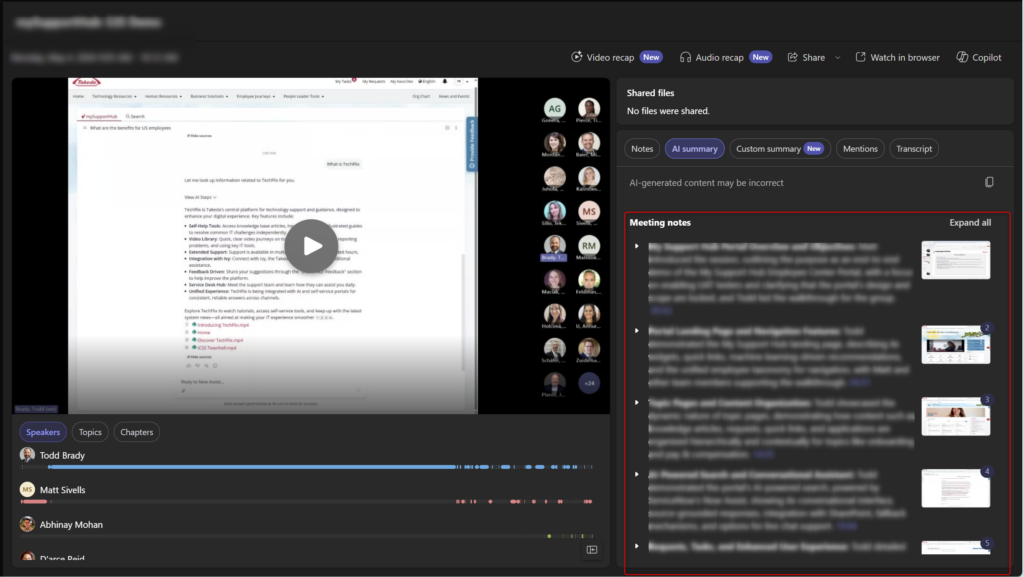
Choosing or customizing a recap template:
- In the Recap tab, look for the template selector or summary format options — this may appear as a dropdown or a settings icon near the top of the summary.
- Browse the available templates. Options may include formats optimized for:
- Standups / daily scrums
- Project status reviews
- Client-facing meetings
- Decision-heavy leadership calls
- Select the template that fits your meeting type.
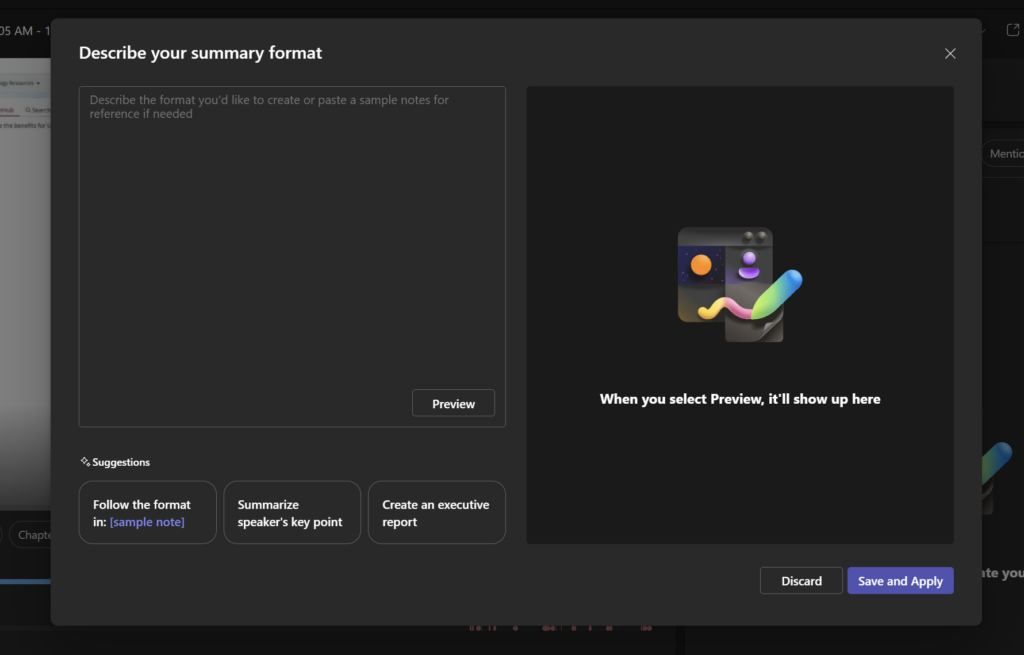
Customizing your own template:
- If the built-in templates don’t quite fit your team’s style, look for a Customize or Edit template option.
- Adjust the sections the recap focuses on — for example, prioritizing action items and decisions over a full narrative summary.
- Save your custom template so it applies to future meetings of the same type.
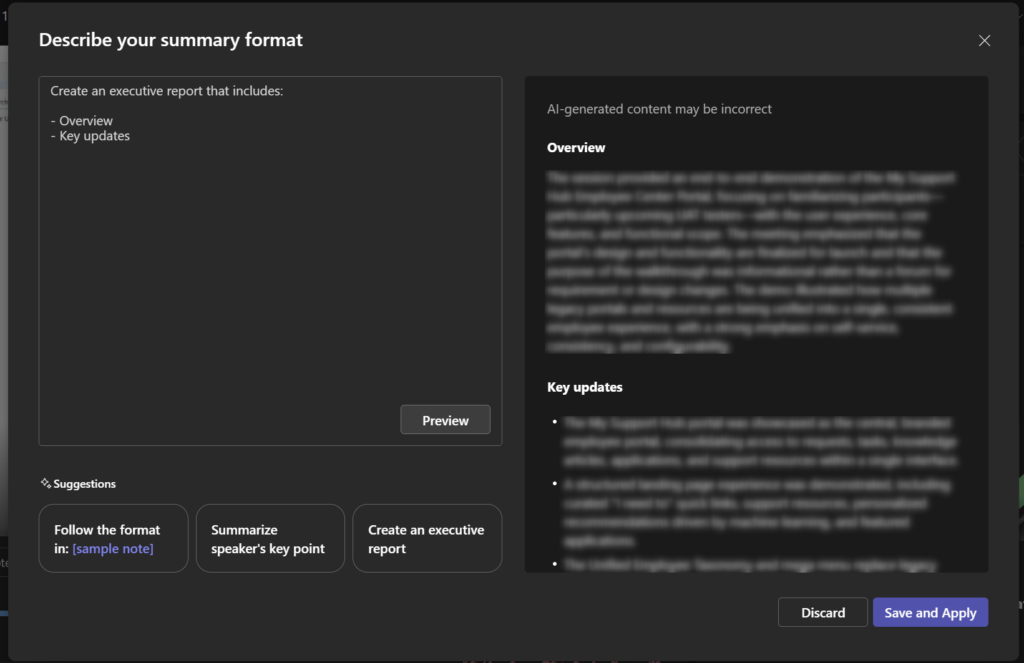
(Note: Steps and UI labels may vary slightly depending on your tenant configuration and rollout status.)
Quick Tips
- Set your template before the meeting if you can. Some configurations let you choose the recap format when scheduling — that way it’s already set up when the summary generates.
- Don’t sleep on the screen capture feature. It’s most useful for meetings with lots of visual content — demos, data reviews, design critiques. If your team does a lot of those, this is the feature to get excited about.
- Recap ≠ recording. The AI summary is not a transcript and it’s not infallible. For anything legally or contractually significant, you still want the actual recording.
- Share the recap, not your notes. Instead of writing up meeting notes and emailing them around, just share the Recap tab link with stakeholders. Less work, more consistent.
- Check the action items section carefully. AI-generated action items can occasionally miss nuance or misattribute who owns a task. A 30-second review before sharing saves awkward follow-ups.
When to Use This / Best Used For
Customizable recap summaries shine in meetings where:
- Decisions are made and need to be documented — board updates, project sign-offs, architecture reviews
- Visual content is central — demos, dashboards, design reviews, data walkthroughs
- Multiple stakeholders need a record — cross-functional syncs where not everyone could attend
- Your team runs recurring meeting types — anywhere a consistent format saves time across weeks and months
When NOT to Use It / Things to Watch Out For
It’s not a substitute for judgment. The AI does a solid job surfacing key moments, but it doesn’t know what you think was the most important thing said. Always do a quick sense-check before forwarding the recap to leadership or clients.
Teams Premium is non-negotiable here. If your team doesn’t have it, you won’t see intelligent recap features at all — just basic meeting details. The license cost is real, so this is worth factoring into your M365 budget conversation if it’s not already there.
Screen captures depend on what was shared in-meeting. If your team does a lot of talking with no visual content, the recap will lean heavily on the text summary. The inline screenshots are only as good as what actually appeared on screen during the meeting.
Tenant configuration varies. Some orgs have intelligent recap partially or fully disabled for compliance reasons. If you’re not seeing the recap tab at all after meetings, loop in your IT admin before assuming it’s a rollout timing issue.
Wrapping It Up
Meetings are expensive — in time, in attention, in the cognitive overhead of trying to remember what happened afterward. The updated recap experience in Teams is a meaningful step toward making that overhead just… disappear.
The combination of visual context (screen captures right where they belong) and customizable structure (templates that match how your team actually works) means recaps can finally be useful to people who weren’t there, not just a reminder for people who were.
Start small: next time you run a recurring meeting — a weekly standup, a monthly project review, whatever it is — set up a custom template and see if the recap that comes out the other side is actually something you’d forward. Odds are good it will be.
Honestly? There’s something kind of satisfying about opening a recap and seeing exactly what was on screen when the big decision got made. Like the meeting finally has a memory.