

If you’ve ever watched someone build a SharePoint site from a blank canvas — picking fonts, adding web parts one by one, fussing over layouts for an hour — you already know the pain this feature is here to fix.
Microsoft has quietly added a centralised Template Gallery to SharePoint, and it’s one of those quality-of-life upgrades that sounds small until you realise how much time and frustration it’s going to save across your organisation.
Here’s what it is, how it works, and why your comms team, HR department, and IT admin are all going to love it.
So… What’s the Template Gallery?
Think of it like a catalogue of pre-built site designs — except instead of being buried somewhere in a separate admin portal, it’s right where you need it: accessible directly from site settings.
Site owners (and admins) can browse a library of pre-designed SharePoint templates and apply one to a site in just a few clicks. The template drops in the layout, web parts, navigation structure, and visual styling — all at once.
No more sending people a “here’s how we like our sites to look” PDF and hoping for the best.
Why This Is Actually a Big Deal
- Faster site setup — What used to take an afternoon of fiddling can now be done in minutes. Pick a template, apply it, tweak the details. Done.
- Brand consistency across departments — When every team is starting from an approved template, you’re not playing whack-a-mole trying to fix rogue colour schemes and inconsistent navigation six months later.
- Lower the barrier for non-technical site owners — Not everyone who creates a SharePoint site is comfortable with design. Templates give them a professional starting point without needing to bother IT.
- Governance by design — Admins can curate which templates are available in the gallery. That means you can quietly guide people toward approved structures without writing a policy document anyone will actually read.
- Scalable for large organisations — Rolling out a new intranet strategy across dozens of department sites? Templates mean you can enforce a consistent structure without touching each site manually.
How to Access and Apply a Template
(Note: steps may vary slightly depending on your tenant configuration or rollout status.)
- Navigate to your SharePoint site and click the Settings gear (⚙️) in the top-right corner.
- Select Site contents or look for Apply a site template — depending on your rollout, the entry point may appear directly in the settings menu. 📌 Admin note: Your IT admin may need to enable or configure the Template Gallery before it’s visible to site owners. If you don’t see it, that’s the first place to check.
- Browse the Template Gallery — you’ll see a selection of pre-built templates organised by use case (e.g., team site, communication site, department hub).
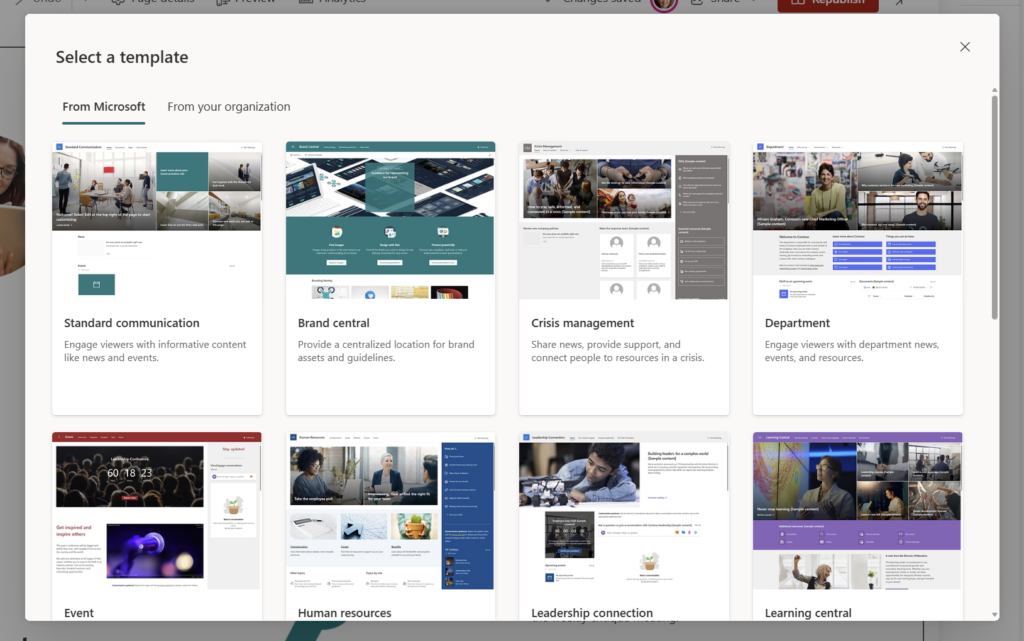
- Preview a template by clicking on it to see a visual preview of the layout and web parts it includes.
- Click Apply to apply the template to your site.
- Review and customise — the template populates your site’s structure. From here, swap out placeholder text, images, and links to make it your own.
Quick Tips
- Don’t skip the preview step. Some templates look similar in the thumbnail but have very different navigation structures underneath.
- Apply templates early. Once a site has lots of content, applying a template can get messy — it’s much cleaner on a fresh site.
- If you manage multiple sites, consider creating an internal guide (or even a SharePoint page, naturally) documenting which template to use for which purpose. Saves the “which one do I pick?” question.
- Admins: curate your gallery. If Microsoft’s out-of-the-box templates don’t match your brand, work with your SharePoint architect to add custom templates. The gallery is only as good as what’s in it.
When to Use It / Best Used For
- New department or project sites — perfect starting point instead of blank canvas
- Intranet rollouts — standardise structure across comms, HR, IT, and other hubs
- Self-service site creation — give users a safe lane to create sites without going rogue
- Onboarding new teams — get a functional, professional-looking site in front of people fast
When Not to Use It / Things to Watch For
Heavily customised sites — If your site has been built out over months with lots of bespoke web parts and integrations, applying a template could disrupt existing content. Always test on a staging or sandbox site first.
Templates aren’t magic wands. A template gives you structure — it doesn’t fill in your content, set your permissions, or configure your navigation links. You still need to do the editorial and governance work.
Custom templates require effort upfront. If Microsoft’s default templates don’t reflect your brand or structure, someone needs to build the custom ones. That’s not hard, but it’s not free either. Factor in the setup time before telling fifteen departments the gallery is ready to go.
Rollout timing matters. This feature is still making its way across tenants. If your team can’t see the gallery yet, sit tight — or nudge your IT admin to check the Message Center.
Wrapping It Up
The SharePoint Template Gallery isn’t the flashiest feature Microsoft has ever shipped. But it’s the kind of thing that makes a real difference in organisations where SharePoint is central to how people work — especially when you’re trying to maintain a consistent intranet without a dedicated team policing every site.
Honestly? The bigger win here isn’t speed (though that’s great). It’s that it quietly solves a governance problem by making the right thing the easy thing. When people have a gallery of approved templates to choose from, they’re far less likely to wander off and build something that looks like it was designed in 2009.
This week, try this: Find one site in your organisation that was recently created from scratch and looks a little rough. Open the Template Gallery, see if there’s a template that fits the use case better, and apply it to a copy of the site. Compare the results. That five-minute experiment will tell you everything you need to know about whether this is worth rolling out more broadly.
And honestly? It’s kind of satisfying to watch a site go from “blank and chaotic” to “clean and structured” in about three clicks.