

⚠️ License note: The full Microsoft 365 Copilot experience — Copilot embedded in Word, Excel, PowerPoint, Outlook, and Teams — requires a paid Microsoft 365 Copilot add-on license. But Microsoft Copilot (free), available at copilot.microsoft.com, is available to anyone with a Microsoft account. No license required.
If you’ve opened Microsoft 365 lately, you’ve probably seen it — the little sparkle icon, the “Try Copilot!” banners, the pop-ups showcasing what AI can do for your meetings, your emails, your documents. It’s everywhere. And if your organization hasn’t bought licenses yet, it can feel a little bit like being handed a menu at a restaurant where everything is out of stock. Frustrating, right?
Here’s the thing though: the free version of Microsoft Copilot is more capable than most people realize — and it’s being badly undersold by Microsoft’s own marketing, which is mostly focused on getting you to upgrade.
So let’s talk about what you actually can do without spending a dime. Because there’s real value here, and you don’t have to wait for budget approval to start building AI habits in your organization.
Here’s what the free tier offers, how to make the most of it, and how it can genuinely prepare your team for the licensed experience — if and when that day comes.
So… What Is the Free Version of Microsoft Copilot, Really?
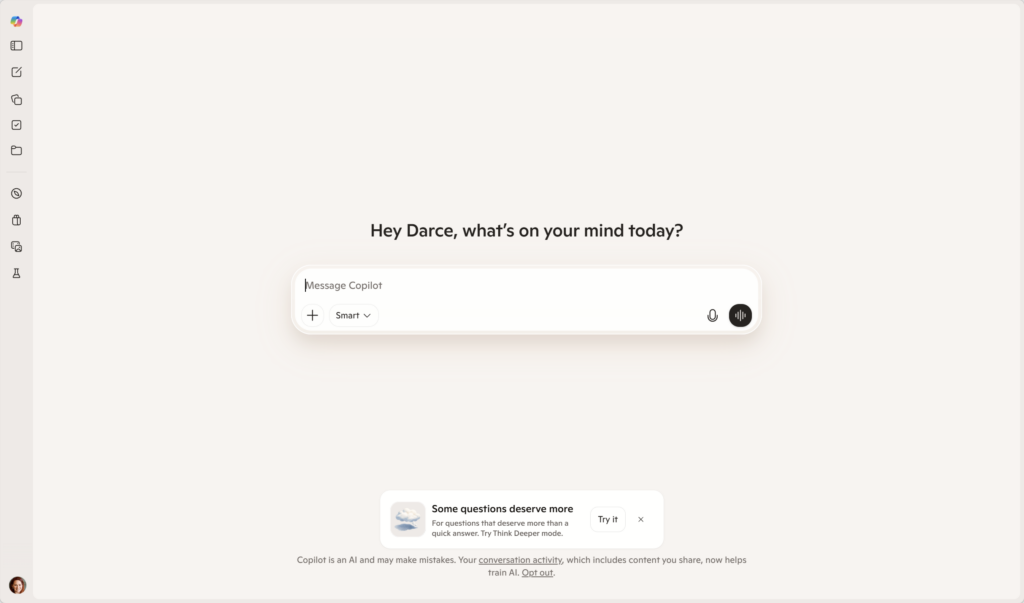
Think of free Microsoft Copilot as a highly capable AI assistant that lives in your browser and works with whatever you bring to it. It’s powered by large language models and it’s available at copilot.microsoft.com or through the Copilot app on iOS and Android.
When you sign in with a personal or work Microsoft account, you get:
- A conversational AI chat interface — ask it anything, get thoughtful responses
- The ability to analyze and summarize content you paste in
- Image generation via Microsoft Designer integration
- Web-grounded answers — Copilot can search the web in real time for current information
- Document drafting, editing, brainstorming, and more
What you don’t get — and this is the important distinction — is Copilot connected to your Microsoft 365 data. No “summarize my last 10 emails.” No “draft a reply based on this Teams thread.” The licensed version plugs directly into your tenant data. The free version works with what you bring to it.
That distinction matters. But it shouldn’t stop you from starting.
Why This Still Matters (Even Without the License)
- You can build AI fluency now. The biggest barrier to Copilot adoption isn’t the license — it’s people who’ve never developed a habit of prompting AI. The free version is a perfect training ground. Your team can learn how to write clear prompts, iterate on outputs, and think critically about AI-generated content — all before the license lands.
- You can handle a surprising amount of real work. Drafting policies, summarizing meeting notes you paste in, generating ideas for a project kickoff, writing job descriptions, building agenda templates, creating training content — none of that requires your M365 data to be connected.
- You can build a smarter business case. If leadership is asking “why do we need this?”, having your team actively use the free tier gives you real examples and real time savings to point to. That’s a much stronger argument than a vendor pitch deck.
- It’s available right now. No procurement cycle. No IT ticket. Just a browser and a Microsoft account.
What You Can Actually Do With Free Copilot — A Practical Playbook
1. Draft Documents and Communications
Paste in an outline, bullet points, or rough notes — and ask Copilot to turn them into a polished draft. Policy documents, project proposals, internal announcements, onboarding guides. This alone can save hours a week for the right people.
Try this prompt: “I’m writing an internal announcement about our new hybrid work policy. Here are the key points: [paste your bullets]. Please draft a clear, professional announcement — warm but not overly casual — under 300 words.”
[Screenshot: Copilot chat window showing a drafted internal announcement]
2. Summarize Anything You Can Paste
No, it can’t pull your emails automatically. But you can copy and paste content from emails, documents, meeting transcripts, or articles — and ask Copilot to summarize, extract action items, or identify key themes.
A lot of teams are already doing this manually: copy a long email chain → paste into Copilot → ask for a 5-bullet summary. It takes about 30 seconds and it works beautifully.
Try this prompt: “Here are the notes from our team meeting. [Paste notes.] Please pull out the key decisions made, the open questions, and the action items with owners.”
[Screenshot: Copilot returning a clean action items list from pasted meeting notes]
3. Brainstorm and Generate Ideas
This is where free Copilot genuinely shines — and where a lot of people underestimate it. Need agenda items for an all-hands? Ideas for a team recognition program? Ways to improve a process? Copilot is a surprisingly good thinking partner when you give it enough context.
Try this prompt: “We’re a small nonprofit running a fundraising gala for the first time. Give me 10 creative ideas for donor engagement activities during the event, keeping in mind we have a modest budget.”
4. Analyze Data You Paste In
If you have a table, a list, or raw data — paste it in. Copilot can help you spot patterns, suggest how to organize it, explain formula logic for Excel (you implement it yourself), or turn raw numbers into a narrative summary.
📌 Heads up: This is not a substitute for Copilot in Excel, which works directly inside your spreadsheet file. But for lighter analysis and “help me make sense of this” tasks, it’s a solid starting point.
5. Create Training Materials and Templates
This one is criminally underused. Ask Copilot to create quiz questions based on a policy document you paste in. Draft a training module outline. Build a template for a recurring report. Generate a checklist for a new employee’s first week. The output isn’t always perfect, but it’s a great starting point — and starting points are often the hardest part.
Try this prompt: “Here’s our information security policy. [Paste policy.] Create 10 multiple-choice quiz questions to test employees’ understanding, with answer keys.”
Quick Tips for Getting More Out of the Free Tier
- Always give it context. The more background you provide — who you are, what the document is for, what tone you need — the better the output. “Write a meeting agenda” gets a generic result. “Write a 30-minute agenda for a weekly project status meeting with a cross-functional team, where the main goal is surfacing blockers” gets something actually useful.
- Iterate, don’t just accept the first draft. Treat every response as a starting point. Ask it to shorten, expand, reframe, or shift the tone.
- Sign in with your work Microsoft account. This gives you a slightly more tailored experience and keeps you aligned with whatever your organization rolls out later.
- Turn on web search. Free Copilot can browse the web in real time — great for summarizing recent news, researching a topic, or adding current context to something you’re writing.
- Save your best prompts. When a prompt works really well for a recurring task, write it down. You’re building a personal prompt library — a skill that transfers directly to the licensed experience.
When Free Copilot Is the Right Tool
- Ad hoc drafting and editing tasks
- Summarizing content you can copy and paste
- Brainstorming and ideation sessions
- Building reusable templates and frameworks
- Learning to prompt effectively before licenses arrive
- Small teams or organizations with tight budgets who still need AI assistance today
When You’ll Hit the Ceiling — And That’s Okay
Let’s be honest about the limits. If your work depends heavily on email threads, Teams conversations, or documents sitting in your M365 environment, the free version is going to feel like reading about a car instead of driving one. It can’t pull your calendar, it doesn’t know your files, and it can’t write a meeting recap based on your actual Teams call recording.
The licensed Copilot experience is genuinely different — and worth the cost for the right roles and the right organizations. The free tier isn’t a replacement. It’s a runway.
And honestly? That’s not a bad thing. Teams that spend time on the free version tend to adopt the licensed version faster and more effectively — because they’ve already built the muscle. They’re not starting from zero when the license arrives. They know how to prompt. They know when AI helps and when it doesn’t. That’s a huge head start.
Wrapping It Up
Microsoft’s Copilot marketing is loud — and it’s mostly aimed at organizations that are already bought in. But the free version of Copilot is real, capable, and available today. It’s a genuinely good place to start building AI literacy across your team without waiting for a budget conversation to resolve itself.
This week, pick one recurring task that feels repetitive — writing a status update, pulling action items from a meeting, drafting a communication to staff — and try doing it with free Copilot instead. Just one task. See what happens. If it saves you 20 minutes, that’s the proof of concept you need to share with leadership.
The teams that will hit the ground running when a license arrives are the ones who’ve been practicing in the free tier all along. Don’t wait for perfect conditions. Start now.
Honestly? It’s kind of fun to watch your team start to get it — that moment when someone realizes AI didn’t replace their thinking, it just gave them a better starting point.