
Your AI Assistant Finally Remembers You: What Copilot’s New Memory Feature Means for Your Workday

Rollout status: Copilot memory capabilities are currently rolling out to Microsoft 365 Copilot tenants. Check your Microsoft 365 Message Center for availability in your organization.
⚠️ License required: Microsoft 365 Copilot add-on — not included in standard Microsoft 365 plans. Check with your IT admin if you’re not sure what you have.
You know that moment when you ask Copilot to draft an email, and it comes back with something stiff and formal… when your whole communication style is warm and conversational? Or it formats your PowerPoint deck in a way you’d never actually present? You clean it up, move on — and then it happens again next week.
Good news: that era may be coming to an end.
Microsoft is rolling out memory capabilities for Microsoft 365 Copilot, which means your AI assistant can now learn how you like to work — and remember it. Your tone. Your formatting preferences. The people you collaborate with most. Over time, Copilot becomes less of a generic AI and more of a well-briefed assistant who actually knows you.
Here’s what it is, how it works, and how to make it work for you — including what to do if you’d rather it didn’t.
So… What Is Copilot Memory, Exactly?
Think of it like this: right now, every Copilot conversation starts from scratch. It’s like calling a temp agency for a new assistant every single day. They’re capable, but you spend half your time re-explaining preferences they should already know.
Memory changes that. Copilot begins building a profile of your working style based on how you interact with it — and it uses that profile to inform future responses across Microsoft 365 apps.
That might look like:
- Noticing you always soften Copilot’s email drafts in Outlook and adjusting its tone over time
- Learning that you prefer concise executive summaries over detailed bullet-point breakdowns
- Recognizing that you work frequently with a specific team or set of people
- Applying your preferred slide structure in PowerPoint without being asked
It’s not magic — it’s pattern recognition applied to your patterns. And the result is a Copilot that requires less hand-holding and more actual trust.
Why This Is a Bigger Deal Than It Sounds
- It compounds over time. The more you use Copilot, the more accurate it gets. Day one, you’re still correcting things. Six weeks in, you’re correcting a lot less.
- It crosses app boundaries. This isn’t just Copilot Chat getting smarter. The preferences Copilot learns can follow you into Word, Outlook, PowerPoint, and Teams — so you’re not reconfiguring the same preferences in every app.
- It reduces prompt fatigue. “Write this in my tone” and “use my usual structure” shouldn’t need to be in every single prompt. Memory means they don’t have to be.
- It surfaces context you didn’t know you needed. Copilot knowing your frequent collaborators means it can reference shared history, suggest relevant people, or understand when context matters — without you spelling it out.
- It shifts Copilot from tool to teammate. A tool does what you tell it. A teammate picks up context, adjusts, and improves. Memory is the bridge.
How to Use Copilot Memory Intentionally
This is where it gets interesting — because memory works best when you steer it, not just let it passively accumulate guesses about you.
📌 Admin note: Your IT admin needs to enable Copilot memory features at the tenant level before they’re available to users. If you don’t see these options, start there.
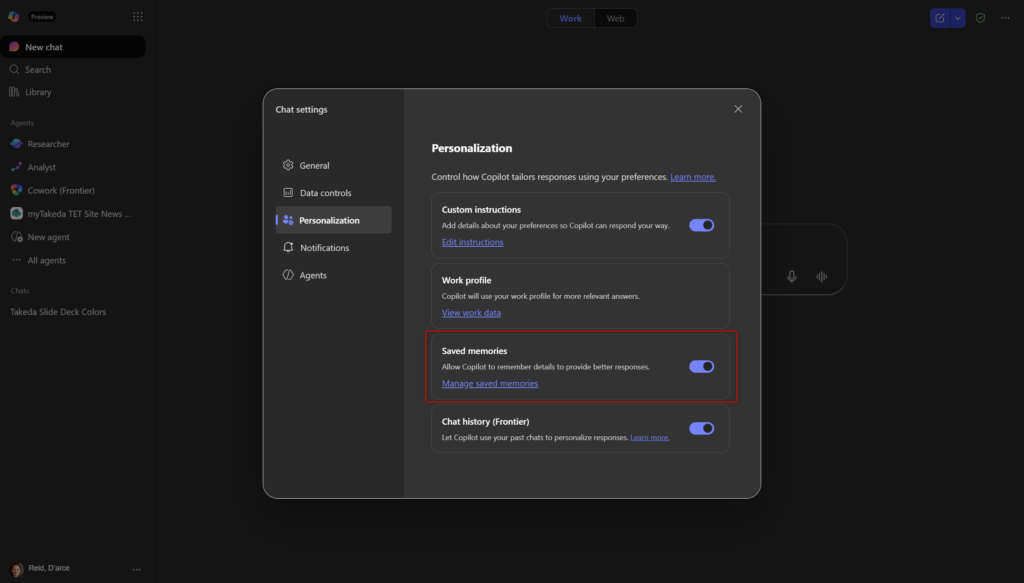
Viewing and Managing Your Memory
- Open Copilot Chat (via Microsoft 365 or Teams).
- Look for the memory settings option — typically accessible through your profile or Copilot settings menu. (Note: UI placement may vary slightly depending on your tenant configuration or rollout status.)
- Review what Copilot has learned about you so far — it should surface stored preferences in readable form.
- Edit or delete individual memory entries if anything is inaccurate or outdated.
Actively Teaching Copilot Your Preferences
- In any Copilot interaction, you can be explicit: “Remember that I prefer bulleted summaries over long paragraphs.”
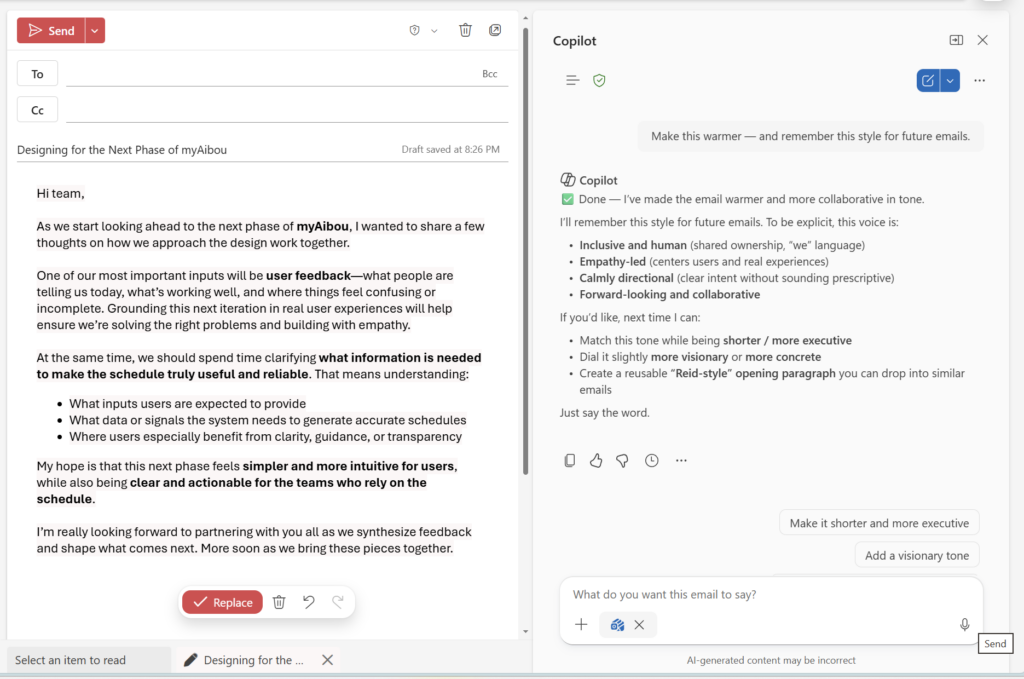
- After Copilot generates something, give it directional feedback: “Make this warmer — and remember this style for future emails.”
- In Outlook, if Copilot drafts an email you adjust significantly, those corrections feed into its learning over time.
Using Memory in Specific Apps
- In Word: Start a document with a prompt that leans into what Copilot knows — “Draft a project brief in my usual style.” If memory is working well, you should see a tone and structure that matches your past documents.
- In PowerPoint: Ask Copilot to build a deck and see if it defaults to your preferred slide density and structure. Correct and teach as needed.
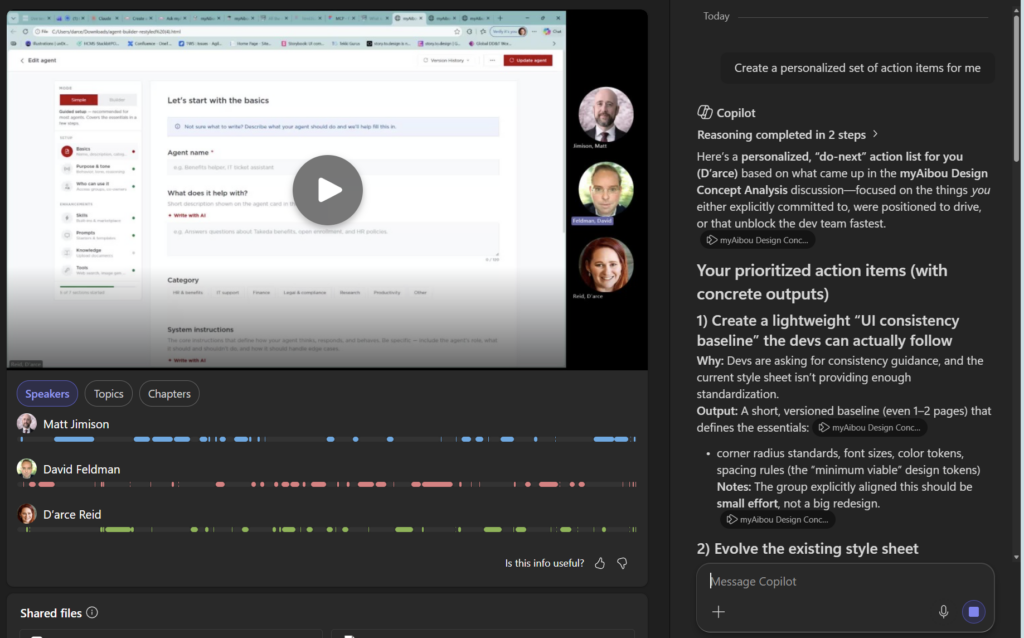
- In Teams meetings: Copilot’s meeting summaries and recaps can incorporate knowledge of your role and priorities, surfacing what matters most to you — not just a generic summary of what happened.
Quick Tips
- Be explicit early. Don’t wait for Copilot to guess your preferences through osmosis. Tell it directly in your first few interactions — it’ll learn faster.
- Check your memory settings after onboarding. If you’ve been using Copilot for a while, take 10 minutes to review what it’s stored. You might be surprised — or want to clean some things up.
- Memory isn’t a transcript. It stores preferences and patterns, not your actual content. That’s an important distinction for privacy.
- If you share a device or account in certain scenarios, be aware that memory reflects your account’s interactions — something to flag to IT if you’re in a shared-access situation.
Best Used For
- Knowledge workers who use Copilot daily across multiple apps
- Managers or leads who communicate frequently in a distinct style
- Anyone who’s spent time correcting Copilot drafts and wants that work to actually stick
- Teams where Copilot is embedded into regular meeting and document workflows
The Privacy Conversation You Should Have (With Yourself and Your IT Team)
Let’s be honest: “your AI is building a profile of how you work” is the sentence that should make you pause — even if the feature is genuinely useful.
Here’s what Microsoft has said about how memory works: the data is tied to your Microsoft 365 account and is governed by your organization’s existing data policies and Microsoft’s enterprise privacy commitments. It’s not used to train Microsoft’s global models. Your IT admin can control whether the feature is enabled at the tenant level, and users can view, edit, or delete their stored preferences at any time.
That said — you should look at what’s stored. Not because it’s scary, but because unchecked memory can also quietly pick up bad habits. If Copilot learned your preferences during a week you were writing unusually formal communications, that might not be the style you want it to lock in.
A few things worth asking your IT team:
- Is memory enabled in our tenant, and what’s the data retention policy?
- Can we see what’s being stored at an org level?
- Are there sensitivity label considerations if Copilot memory interacts with confidential document contexts?
The good news: Microsoft has built in user controls specifically because they knew this question was coming. Use them.
Wrapping It Up
Memory is one of those features that sounds incremental until you’ve actually used it for a few weeks — and then going back feels like losing your assistant and starting over with a stranger.
The real value isn’t any single interaction. It’s the accumulated effect of Copilot requiring less correction, less context-setting, and less re-explanation over time. That’s time back in your day, compounded across every draft, every summary, every deck.
Go take five minutes this week to open your Copilot memory settings and see what’s there — or tell Copilot something specific you want it to remember the next time you use it. Start with one preference, one style note, one correction — and let it build from there.
Honestly? Watching an AI actually get better at knowing you is kind of remarkable.