
Stop Reading Every Document From Scratch — Let Copilot in OneDrive Do the Heavy Lifting

You know that moment when someone drops six versions of a proposal in a shared folder and says, “Can you take a look and tell me what changed?” And your soul leaves your body a little?
Yeah. Copilot in OneDrive was basically built for that moment.
Microsoft has quietly tucked some genuinely useful AI features right into OneDrive — no extra apps, no complex setup, no copying and pasting into a chat window. You can now summarize a document and compare multiple documents side-by-side without ever opening them in Word or manually hunting for differences.
Here’s what it is, how it works, and why your future self will thank you for trying it.
So… What Does Copilot in OneDrive Actually Do?
Think of it like having a research assistant sitting inside your file storage. You highlight a document (or a few), and Copilot can:
- Summarize a single file — pulling out the key points, themes, and takeaways without you reading every page
- Compare up to five documents — identifying similarities, differences, and what changed between versions or between competing proposals
This is different from Copilot in Word, which works on a document you already have open. In OneDrive, Copilot works on the file itself, right from the file list. It’s fast, it’s contextual, and it saves a surprising amount of time.
Why This Is Actually a Big Deal
- No more “let me skim this real quick.” You can get a meaningful summary of a 40-page report in seconds — which means you actually know what’s in it before your next meeting.
- Version chaos, solved. Got three drafts of the same contract and no idea what changed? Copilot surfaces the differences without a manual line-by-line read.
- Works where your files already live. You don’t need to upload anything, open anything, or switch tools. It’s right there in OneDrive.
- Great for things you didn’t write. Copilot shines when you’re catching up on someone else’s work — a new project doc, a vendor proposal, an inherited strategy plan.
- Speeds up decision-making. When you can compare three vendor quotes or two policy drafts in one view, you can make a call faster.
How to Summarize a Document in OneDrive
📌 Admin note: Your IT admin may need to enable Microsoft 365 Copilot features in your tenant before these options appear. If you don’t see the Copilot icon or menu, check with your admin.
- Open OneDrive on the web (onedrive.com or via the Microsoft 365 app launcher).
- Browse to the file you want to summarize — a Word doc, PDF, or PowerPoint file.
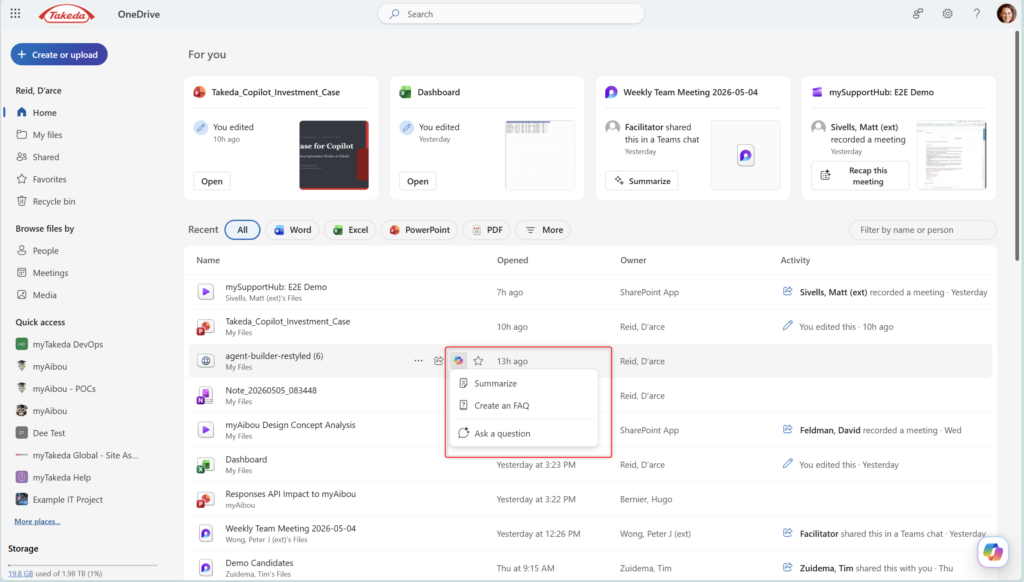
- Hover over the file (don’t open it) and select the checkbox to highlight it.
- Look for the Copilot button in the top toolbar — it usually appears as a Copilot icon or in the right-click context menu.
- Click Summarize (or “Summarize with Copilot”).
- Copilot will generate a summary in a side panel — key points, themes, and main takeaways pulled directly from the document content.
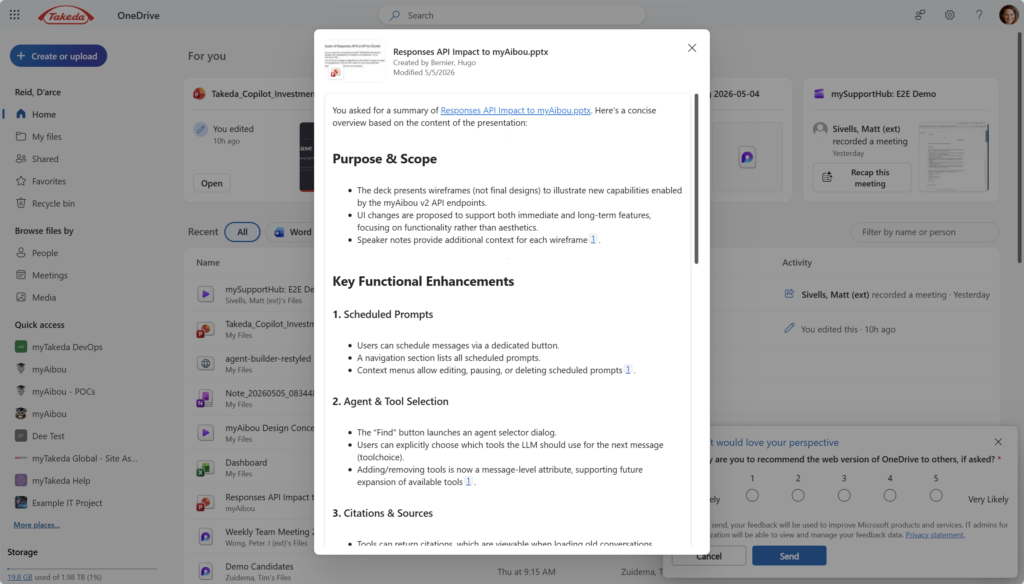
That’s it. No opening the file. No waiting for Word to load. Just a clean summary, right there.
How to Compare Documents in OneDrive
This is where it gets really fun — especially for anyone who regularly deals with document versions, competing proposals, or policy updates.
- In OneDrive, browse to the folder containing the documents you want to compare.
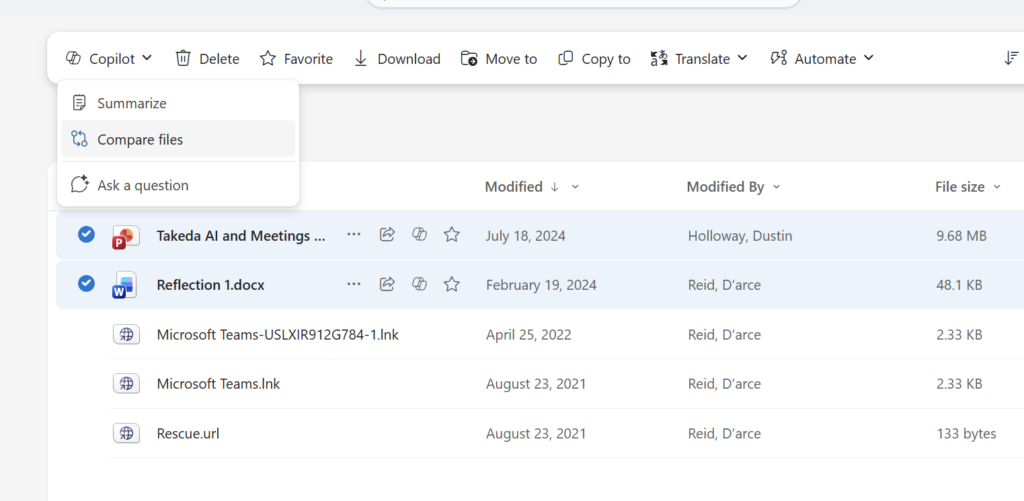
- Select 2–5 files by checking the boxes next to each one.
- These can be different versions of the same document, or entirely separate files on the same topic.
- Supported file types include Word documents and PDFs.
- With multiple files selected, click the Copilot button in the top toolbar.
- Choose Compare (or “Compare with Copilot”).
- Copilot generates a comparison summary in a side panel — highlighting what’s similar, what’s different, and what’s notable across the files.
📌 Admin note: The compare feature supports up to five files at a time, and results may vary based on document length and formatting.
Quick Tips
- PDFs work too. This isn’t just a Word-doc feature. Scanned PDFs with readable text work as well — great for contracts, reports, or anything that comes in as a PDF.
- Use it on other people’s files. Copilot in OneDrive works on any file you have access to — not just your own. So if a colleague drops something in a shared folder, you can summarize it without bothering them to explain it.
- Comparison isn’t just for versions. Try comparing two vendor proposals, two candidate summaries, or two policy drafts. It’s great for apples-to-apples situations where you need to decide between options.
- Follow up in chat. After Copilot surfaces a summary or comparison, you can often ask follow-up questions in the panel — like “what’s missing from this?” or “which document covers X more thoroughly?”
- Results are a starting point. Copilot’s summaries are impressively good, but always give a quick scan before forwarding to a stakeholder. It occasionally misses nuance or emphasis in complex documents.
When to Use It — Best Use Cases
- Reviewing multiple drafts or versions of a document before a meeting
- Comparing vendor or partner proposals side-by-side
- Getting up to speed on a document you inherited or received late
- Quickly understanding a long report before presenting or discussing it
- Reviewing policy updates to understand what actually changed
When NOT to Use It — Limitations & Things to Know
It needs clean text. Heavily formatted documents, scanned images, or PDFs without text layers may not summarize well (or at all). If Copilot seems to struggle, check that the file actually has readable text content.
It won’t catch everything. If two documents differ subtly — in tone, in implied meaning, or in what they don’t say — Copilot may not surface that. It’s excellent at structural and factual differences; it’s not a substitute for careful human review when the stakes are high.
Sensitivity labels matter. If your organization uses Microsoft Purview sensitivity labels (which you should, especially for confidential content), Copilot respects those permissions. A document labeled “Confidential — Do Not Share” should be treated accordingly. Copilot doesn’t bypass information protection — but it’s worth knowing your org’s labeling policies before summarizing sensitive material.
It’s not a version-control tool. If you need a true track-changes comparison at the word or sentence level, “Compare Documents” in Word is still your best bet. Copilot’s comparison is a high-level synthesis — useful for understanding the “so what,” not every individual edit.
Availability is still rolling out. If you have a Copilot license and still don’t see these options, it may simply not have reached your tenant yet. Check the Message Center, or ask your admin to look at the Copilot feature rollout status.
Wrapping It Up
The fact that this lives in OneDrive — where your files already are — is kind of the whole point. It meets you where you work, without asking you to change your workflow.
If you regularly deal with document-heavy work (and honestly, who doesn’t at this point), this is one of those Copilot features that earns its keep fast. Not flashy. Not complicated. Just genuinely useful.
Here’s your “try it” challenge this week: Find a shared folder with at least two similar documents — maybe a couple of meeting agendas, two drafts of a proposal, or even two versions of a project plan. Select both, hit Compare in Copilot, and see what it surfaces. You might be surprised how much time it saves — and how much you’ve been missing in those “quick” reads you thought you were doing.
Honestly? It’s kind of nice to feel like you actually read all your documents. Even when you didn’t.