

If you’ve ever stared at a blank SharePoint page and thought, “I know what I want this to say — I just don’t know how to make it look good” — good news. Microsoft just made that a lot easier.
Two new SharePoint features are quietly changing how we build intranet pages: AI-powered section creation and the FAQ web part. One helps you go from a blank canvas to polished content in seconds. The other tackles one of the most tedious-but-important intranet tasks around.
Here’s what they are, how they work, and why your comms team is going to love them.
So… What Is AI-Powered Section Creation?
Think of it like having a design-savvy colleague sitting next to you while you build a SharePoint page — one who’s also a pretty decent copywriter.
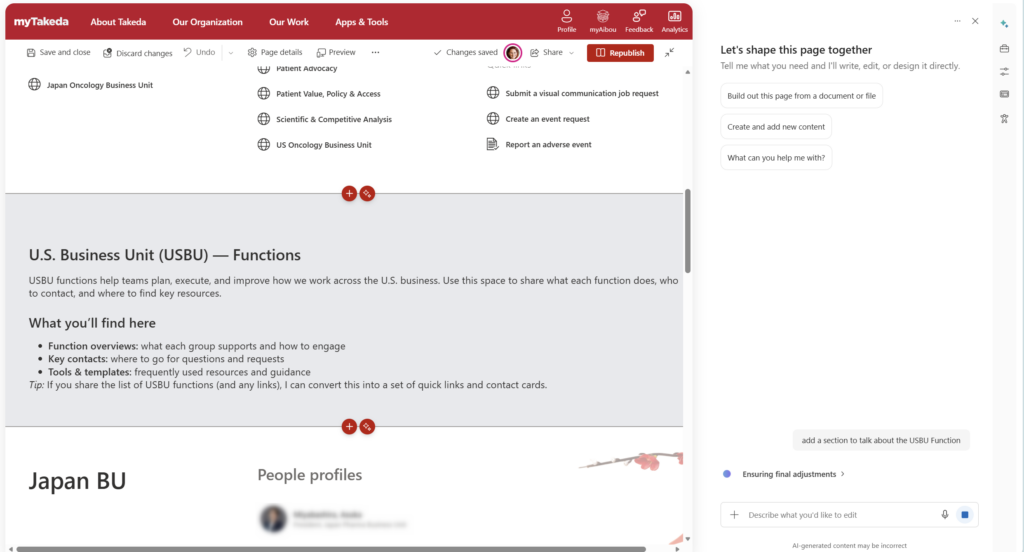
When you add a new section to a SharePoint page, you can now call on Copilot to generate the entire section for you: layout, structure, and web content, all tailored to a prompt you write. Tell it what the section should be about — “a welcome section for our IT help desk site” or “a highlight of our quarterly goals” — and Copilot proposes a full, styled section ready to drop in.
No more dragging web parts around and hoping it looks right. No more wrestling with column layouts. You describe what you want, and Copilot builds the skeleton.
📌 Admin note: Your IT admin may need to enable Copilot authoring features in SharePoint before this option appears in the page editor.
Why This Is a Bigger Deal Than It Sounds
- It lowers the floor for page authors. Not everyone building SharePoint pages is a comms pro or a designer. AI-generated sections mean even a team lead spinning up a project site can make something that doesn’t look thrown together.
- It speeds up the pros, too. Experienced SharePoint authors can use this as a first draft — generate the structure, then refine it. That’s way faster than starting from scratch.
- It reduces “blank page paralysis.” There’s something about a completely empty SharePoint canvas that stops people cold. Having Copilot fill it in — even imperfectly — gets momentum going.
- Consistency gets easier. When sections are AI-assisted, they tend to follow sensible layout patterns. That’s good for organizations trying to keep their intranet looking coherent across dozens of sites.
One honest gotcha: the AI-generated content will need editing. Copilot doesn’t know your organization’s voice, your specific programs, or your internal terminology. Treat it like a very capable intern’s first draft — great bones, needs your touch. Don’t publish it straight out of the box.
And Then There’s the FAQ Web Part
Now for the feature that’s going to make a lot of SharePoint owners quietly relieved: a dedicated FAQ web part, powered by AI.
FAQs are one of the most common things people want on an intranet page. HR pages have them. IT help desk sites have them. Policy hubs have them. And yet, building a good FAQ has always been a bit of a pain — manual accordions, tables, or just a wall of text that nobody reads.
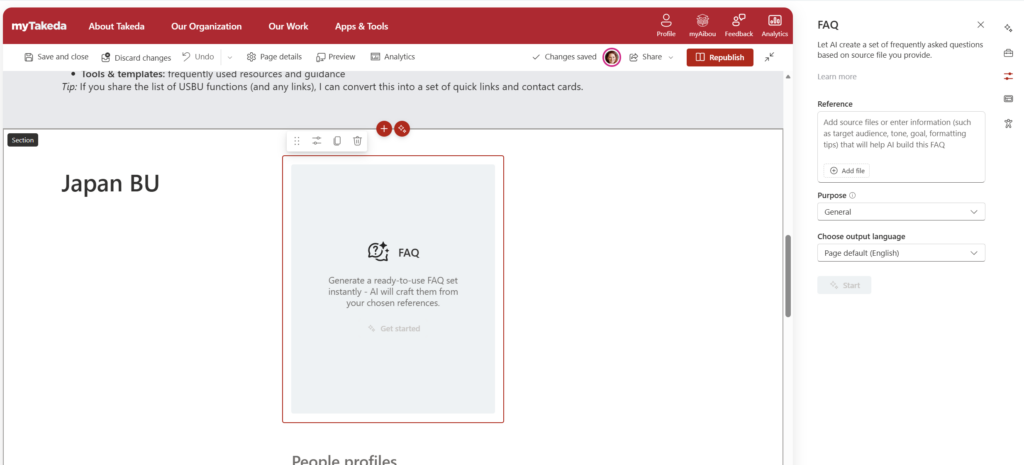
The new FAQ web part changes that. You can add it to any SharePoint page, feed it your questions and answers, and it renders as a clean, collapsible FAQ that’s easy to scan and navigate. The AI assistance helps you generate or refine Q&A pairs — useful when you have a document full of policy information and you need to turn it into something humans will actually use.
How to Use These Features
For AI-Powered Section Creation:
- Open a SharePoint page in edit mode.
- Click + to add a new section.
- Look for the Copilot or Generate with AI option in the section picker.
- Type a prompt describing what the section should contain (e.g., “A banner section welcoming employees to our new benefits portal”).
- Review the generated section — Copilot will propose a layout and placeholder content.
- Accept, adjust, or regenerate until it looks right.
- Replace any placeholder text with your actual content, then publish.
📌 Admin note: If you don’t see the AI option in the section picker, your tenant may not have the Copilot authoring features enabled yet. Check with your Microsoft 365 admin.
For the FAQ Web Part:
- Open a SharePoint page in edit mode.
- Click + to add a web part and search for FAQ.
- Add the FAQ web part to your page.
- Enter your questions and answers — you can type them manually or use the AI assist to help generate Q&A pairs from existing content.
- Arrange the order of questions to match how users think, not how the policy doc was written.
- Publish your page.
Quick Tips
- Start with your most-asked questions. Before using the FAQ web part, talk to whoever handles the inbox for that team — they’ll know exactly what people ask on repeat.
- Keep prompts specific when using AI section creation. “A section about our IT support team” works better than “a section about IT.”
- Use AI-generated sections as a layout tool, not a content tool. The structure Copilot proposes is often solid. The actual words usually need work.
- Don’t build a 20-question FAQ. If you have more than 8–10 questions, consider whether you actually need a new page or a better-organized site, not a longer FAQ.
When to Use These Features
AI-powered section creation is a great fit when:
- You’re building a new site from scratch and want to get moving fast
- You’re a department owner (not a comms pro) who needs pages to look decent
- You’re helping someone else build their site and want a starting point to hand them
The FAQ web part is ideal for:
- HR policy pages, IT support hubs, benefits portals
- Any page where the same 5–10 questions come up over and over
- Onboarding sites where new employees have predictable questions
When NOT to Use Them
The AI section creator isn’t the right tool if Copilot isn’t licensed in your tenant — and it won’t show up at all if your admin hasn’t enabled it. Don’t go hunting for a button that might not be there yet.
And the FAQ web part isn’t a substitute for a well-organized site. If your intranet is a maze and people can’t find anything, a FAQ is a band-aid, not a fix. Use it to complement good information architecture, not replace it.
Wrapping It Up
These two features might not make headlines the way a big Teams announcement does, but they’re exactly the kind of thoughtful, practical improvements that make daily SharePoint life better. Less friction for page authors. Cleaner experiences for employees. And one less excuse for “we just haven’t gotten around to updating that page yet.”
This week, pick one SharePoint page on your intranet that’s been sitting stale — your IT help desk, your HR hub, your department home — and try dropping in a new AI-generated section or adding a FAQ web part. See how it feels. I’d bet you’ll have something publishable in under 20 minutes.
Honestly? It’s kind of fun to watch a blank SharePoint page come to life that fast.