

The Inbox Problem Nobody Wants to Admit
Here’s a scenario that might feel familiar: you open Teams in the morning, and before you’ve had your first sip of coffee, you’re already doing triage. Chat messages in one pane. Channel posts in another. Notifications scattered across both. You’re toggling back and forth trying to figure out what actually needs your attention — and what can wait.
It’s not that Teams was broken. It’s just that the split between Chat and Channels always felt a little… arbitrary. Like someone decided early on that “chats are for people” and “channels are for teams” and then built two entirely separate worlds around that assumption.
Well, Microsoft heard the feedback. The new unified Chat and Channels experience brings both into a single, smarter view — with filters, custom sections, and better tools for prioritizing what actually matters.
Here’s what’s new, how it works, and why this might genuinely change how you start your day.
So… What Changed, Exactly?
Think of it this way: before, Teams was like having two separate inboxes in the same app — one for DMs and one for channel conversations. You had to mentally switch contexts every time you moved between them.
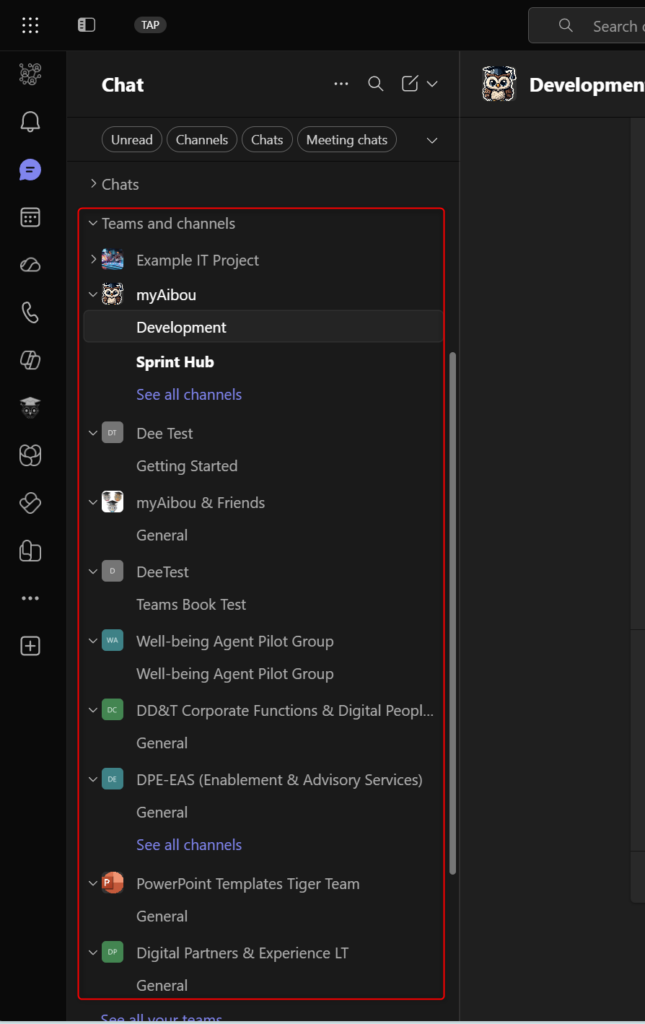
The new experience merges both into one unified list. Your chats and your channel conversations live side by side, and the app gives you tools to make sense of it all — instead of leaving you to manage the chaos yourself.
The three big pieces of the update:
1. One unified list for Chat and Channels Everything lives together now. No more clicking back and forth between sections. If someone sends you a DM and drops a message in your project channel, they both show up in the same place, ordered by what’s most recent or most relevant.
2. Filters that actually help You can filter your view to show only unread messages, only chats, only channels, or only messages where you’ve been @mentioned. That last one is a big deal. If your channel has 47 replies and only 3 of them involve you, you can cut straight to the ones that do.
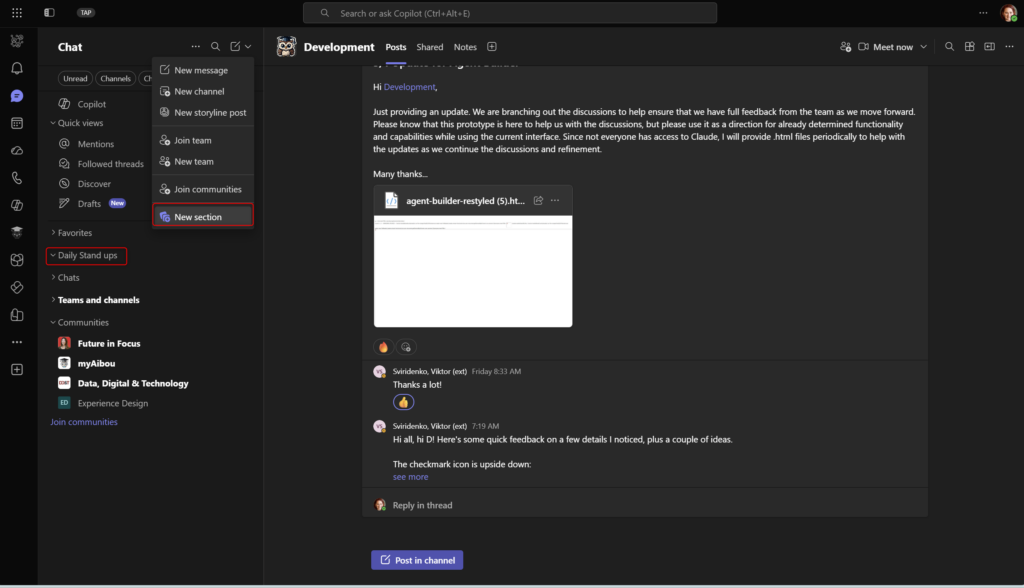
3. Custom sections This is the one that power users are going to love. You can now create your own named sections — like “Project Aurora,” “Leadership Updates,” or “Morning Check-ins” — and drag your most important chats and channels into them. It’s a way to build the structure that works for you, rather than letting Teams decide what shows up at the top.
Why This Is a Bigger Deal Than It Sounds
No more context-switching tax. The mental cost of moving between Chat and Channels was small on each individual toggle — but it added up. Having everything in one view reduces that friction without you having to think about it.
@mentions finally get their moment. The new filter for mentions means you can start every morning by checking only the things that directly require your input. Everything else can wait. That’s a meaningful shift for people drowning in channel noise.
Custom sections = your personal operating system. If you’ve ever wished Teams worked more like your brain does, this is it. You get to decide what’s “priority,” what’s “FYI,” and what gets its own dedicated grouping.
Smarter triage for async work. For teams that communicate across time zones, this is particularly useful. When you log in after hours of offline time, you can scan a filtered view rather than doomscrolling through everything that happened.
Less tool-switching. The more Teams can become a single unified communication layer — rather than two separate communication layers bolted together — the less likely people are to abandon it for something else.
How to Use the New Experience
📌 Admin note: This update is rolling out gradually. Your IT admin may need to verify that the new Teams client is enabled for your organization before this experience appears.
- Open Microsoft Teams and make sure you’re on the latest version of the Teams client.
- Look for the unified Chat + Channels list in the left-hand panel. If you’ve received the update, you’ll see chats and channel conversations appearing together rather than in separate sections.
- Use the filter bar at the top of the list to narrow your view:
- Unread — shows only conversations with new activity
- Chats — filters to direct messages and group chats only
- Channels — filters to channel conversations only
- @mentions — shows only threads where you’ve been mentioned
- Create a custom section to organize your most-used threads:
- Right-click any chat or channel in your list
- Select Add to section (or Create new section)
- Name your section and drag other chats or channels into it
- Reorder your sections by dragging them up or down in the list to match your daily workflow.
- Pin high-priority threads within sections to keep them at the top even when there’s no new activity.
(Note: exact menu labels and options may vary slightly depending on your rollout version.)
Quick Tips
- Start with @mentions every morning. Apply the filter first thing, deal with the things that need you, then clear it and catch up on everything else.
- Name sections by project, not by person. “Project Apollo” will stay useful longer than “Jake’s thing.”
- Don’t over-section. Three or four custom sections is plenty. If you create twelve, you’ve just rebuilt the problem you were trying to solve.
- Combine with mute. Mute high-volume channels you don’t need to track in real-time, then add them to a “Low Priority” section you check once a day.
- Give it a week before judging it. The new layout feels slightly disorienting at first if you’ve been in the old one for years. That’s normal. The muscle memory catches up fast.
Best Used For
- People who split their day between 1:1 conversations and team channel discussions
- Project leads who need to track multiple threads across different groups
- Anyone who uses Teams as their primary communication tool (vs. just for meetings)
- Organizations running async or cross-timezone teams where triage time matters
Honest Take: What to Watch Out For
The unified experience is genuinely good — but a few things are worth knowing before you dive in.
It takes some setup. Out of the box, the unified list can feel noisier than before, not quieter. The value really comes once you’ve invested 10–15 minutes setting up your custom sections and getting intentional about what goes where. Don’t judge it on day one before you’ve done that.
Channel-heavy users may feel the change more. If you’re primarily a channels person who barely used the Chat tab, the merge will feel more jarring. The old mental model of “channels are for announcements and project work” doesn’t go away — it just stops being enforced by the UI.
Rollout is in waves. Not everyone in your organization will get this at the same time. If your colleague is describing a Teams layout you don’t recognize, it’s probably just that they’re ahead of you in the rollout queue. No need to file an IT ticket — yet.
Wrapping It Up
The unified Chat and Channels experience isn’t a flashy AI feature or a dramatic reinvention of Teams. It’s something a little more valuable than that: it’s a thoughtful fix to a real annoyance that millions of people have been quietly living with for years.
The combination of a single unified list, smart filters, and custom sections means Teams finally gives you the tools to work the way you think — instead of asking you to adapt to its structure. That’s the kind of update that doesn’t get a lot of fanfare but genuinely changes your daily experience.
Here’s your try-it challenge for this week: Set aside 10 minutes today to create at least two custom sections — one for your top-priority projects and one for everything else. Then, every morning for the next five days, start your Teams session by hitting the @mentions filter before you do anything else. See if it changes how you feel about your inbox by Friday.