

Rollout status: Communities in Microsoft Teams is currently rolling out to Microsoft 365 tenants. Availability may vary by plan and region — check your Microsoft 365 Message Center for the latest status.
⚠️ License note: Communities in Teams is available as part of select Microsoft 365 plans. Some features — particularly moderation controls and analytics — may vary by license tier. Check with your IT admin if you don’t see Communities in your Teams client.
Picture this: your CEO posts an inspiring company-wide update. Employees across three time zones want to react, ask questions, and feel connected to leadership — but the moment is stuck inside an email blast that nobody replies to, or buried in a Viva Engage feed that half the org never opens.
That friction is real. And it’s what Microsoft Teams Communities is quietly starting to solve.
Teams Communities brings a public, open forum experience directly into Teams — no extra app, no separate login, no “go check Yammer.” Leadership can broadcast updates, start conversations, and engage with employees right inside the tool everyone already has open. Here’s what it is, how it works, and why it might actually change how your leadership team shows up digitally.
So… What Is Teams Communities, Exactly?
Think of Communities as a middle ground between a private Teams channel and a public Viva Engage community. It’s an open space — meaning employees don’t need to be manually added to see and join it — but it still lives inside Teams, inheriting all the familiar interface your people already know.
Leaders can post announcements, host Q&A threads, kick off polls, and respond to comments — all without stepping outside Teams. Employees can follow, react, reply, and even share posts to their own chats. It’s less “broadcast tool” and more “open town square.”
The analogy that clicks for most people: imagine if your company’s all-hands meeting had an ongoing chat room attached to it, and that chat room never closed. That’s roughly the vibe.
Why This Is a Big Deal
- No app-switching required. The number-one reason internal comms tools fail is adoption. If it’s not where people already are, they don’t use it. Communities lives inside Teams, which means the friction is basically zero.
- Leadership feels reachable. A CEO commenting back on an employee’s question in a Community thread is a completely different experience than a newsletter. It’s visible, it’s real, and it signals that leadership is actually paying attention.
- Open by design. Unlike standard Teams channels (which require membership), Communities are discoverable. New employees, curious colleagues, and people who care about a topic can find and join without waiting for an IT ticket.
- Moderation built in. Community owners can pin posts, manage membership, remove content, and flag issues — so it doesn’t turn into the Wild West.
- Works alongside what you have. Communities isn’t trying to replace Viva Engage for large-scale enterprise social. It’s the approachable, lower-lift option for organizations that want open discussion without a full internal social media platform.
How to Create and Use a Teams Community
Setting Up a Community
- Open Microsoft Teams and look for the Communities section in the left navigation bar. (Note: If you don’t see it yet, your tenant may still be rolling out — check with your IT admin.) 📌 Admin note: IT admins can control Communities availability through the Teams Admin Center. If Communities is not visible, your admin may need to enable it for your organization.
- Click join a community.
Posting and Engaging
- Inside your Community, click New conversation to start a post.
- Use the formatting options to add headers, bold text, or images — especially useful for announcements that need to look polished.
- To run a quick pulse check, click the Poll icon to insert a poll directly into your post.
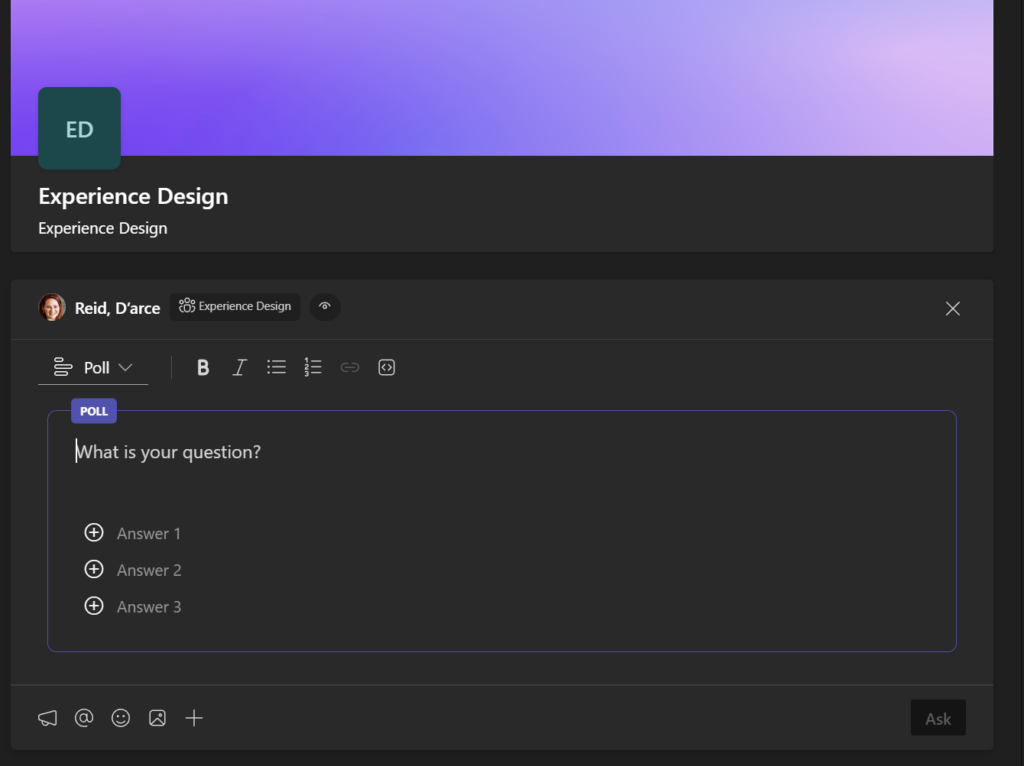
3. Pin your most important posts (like a welcome message or FAQ) by clicking the three-dot menu on a post and selecting Pin.
4. As leaders respond to employee comments, those replies are visible to everyone — making the engagement feel open and organic, not staged.
Quick Tips
- Make the first post count. If leadership creates a Community and then crickets for two weeks, it dies. Have your first two or three posts lined up before you go live.
- Use it for recurring touchpoints. Monthly leadership Q&As, “Ask Me Anything” threads, or team milestone celebrations are perfect fits — recurring, not one-off.
- Don’t over-moderate. One of the things that kills internal communities is the feeling that comments are being filtered. Let conversations breathe a bit. Respond to the hard questions publicly.
- Pin a welcome post. A pinned intro that explains what the Community is for reduces the “what is this?” confusion when someone stumbles in for the first time.
- Think about your community name from a search perspective. Members can search for Communities inside Teams — a clear, keyword-friendly name helps the right people find it.
When to Use Teams Communities
Communities shine when you need:
- Leadership-to-employee comms at the department or company level — especially when two-way engagement matters more than polished production
- Open Q&A threads around company announcements, policy changes, or org-wide initiatives
- Interest-based groups that anyone should be able to discover and join (think: Working Parents Network, Sustainability Champions, Early Career Employees)
- Lightweight alternatives to Viva Engage for mid-size orgs that don’t need the full enterprise social stack
When NOT to Use It — and What to Watch Out For
Don’t use Communities for project work. If your team needs structured channels, tabs, file libraries, and meeting integration — that’s what regular Teams channels are for. Communities are for open conversation, not project coordination.
Governance is still your responsibility. Open communities can accumulate inactive members, off-topic threads, and outdated pinned posts fast. Plan to assign an owner who will actually maintain it — not just create and forget.
It’s not Viva Engage for large enterprises. If you have tens of thousands of employees and need deep analytics, leadership storytelling tools, or integration with Viva Connections dashboards — Viva Engage (formerly Yammer) is still the more capable platform. Communities is a simpler, lower-overhead option that’s great for smaller orgs or specific use cases.
Rollout timing varies. This feature is still making its way through tenants. Your org might have it available today, or it might be a few weeks out. Don’t promise employees a launch date until you’ve confirmed it’s in your tenant.
Wrapping It Up
Teams Communities isn’t trying to reinvent internal communications. What it is doing is removing one of the biggest practical barriers to leadership engagement: the friction of switching to yet another tool.
When a VP can drop into a Community thread during their morning Teams routine, answer a few employee questions, and share a quick update — all without leaving the app they’re already in — that’s genuinely more likely to happen. And that consistency, over time, is what actually builds culture.
If your organization has been saying “we need to do better at internal comms” or “leadership needs to be more visible” — Communities gives you a place to start that doesn’t require a change management project.
Try this this week: Ask one leader in your org to post a single open-ended question in a new Community — something like “What’s one thing you wish more people knew about what our team does?” — and commit to responding to every reply for the first 48 hours. See what happens.
Honestly? It’s kind of fun to watch a simple open question turn into a real conversation that leadership is actually part of.
📖 Official docs: Microsoft Teams Communities – Microsoft Support