

📣 Rollout status: This change has fully rolled out to Microsoft 365 tenants worldwide (completed mid-January 2026). GCC environments completed rollout by late January 2026. If you haven’t seen it yet, you should have it now — check with your IT admin if the tab still shows as “Files” in your channels.
If you opened Microsoft Teams one day and thought, “Wait… where did the Files tab go?”— you’re not alone. Thousands of users had the exact same moment of mild panic. Good news: nothing is gone. It just moved, got renamed, and honestly… got a little better.
Here’s what changed, where everything lives now, and why this update is actually worth understanding.
So… What Happened to the Files Tab?
Microsoft renamed the Files tab in Teams channels to Shared. That’s the short version.
The longer version: the old Files tab only showed you files that had been uploaded directly to the channel’s SharePoint document library. Which was fine — but it missed a huge chunk of content that actually gets shared in Teams every day: files dropped into channel posts, links shared in conversations, PDFs someone attached to a message. All of that used to live somewhere else (or nowhere obvious at all).
The new Shared tab brings both worlds together in one place, with two views underneath it:
- In library — This is your old Files tab, essentially unchanged. All your uploaded documents, folders, co-authoring, everything. Same functionality, new home.
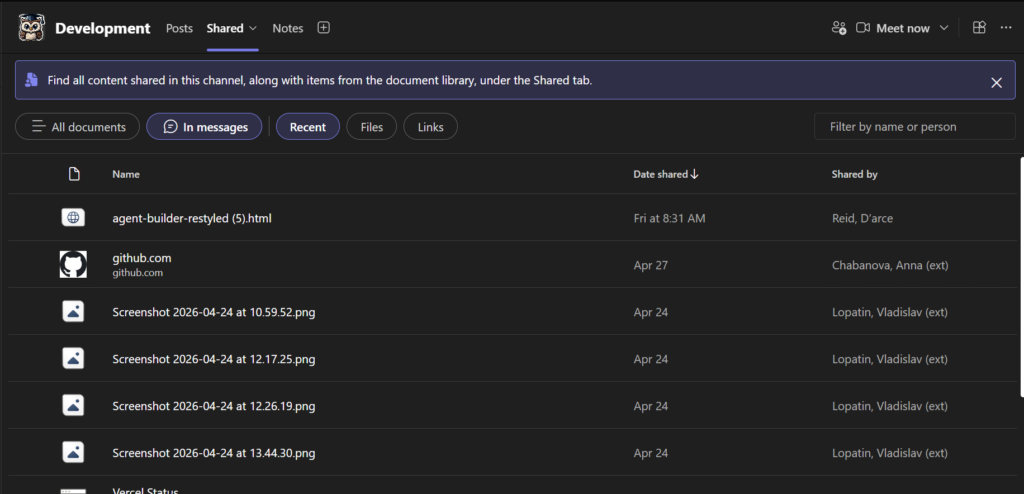
- In posts — This is the new bit. Every file and link that’s been shared in channel posts now shows up here. You can sort by most recent and filter by Files or Links.
Think of it like a filing cabinet that finally has two labeled drawers instead of one drawer and a pile on top.
Why This Is Actually a Big Deal
- No more mystery files. You know that feeling when someone says “I shared that document in the channel last week” and you can’t find it anywhere? The In posts view fixes that. It’s all there, chronologically, filterable.
- One tab to rule them all. Instead of digging through conversation threads to find a link someone dropped in three weeks ago, you’ve got a dedicated view for exactly that.
- Familiar + new. Everything you already knew how to do in Files still works the exact same way in the In library view. Zero learning curve for your existing workflows.
- Consistency with chat. The Shared tab already existed in Teams chats — this update brings channels in line with that experience, which makes the overall Teams interface feel a lot more coherent.
Where to Find Everything Now
Finding your uploaded files (In library view)
- Open any Teams channel
- Click the Shared tab at the top (where Files used to be)
- Click In library
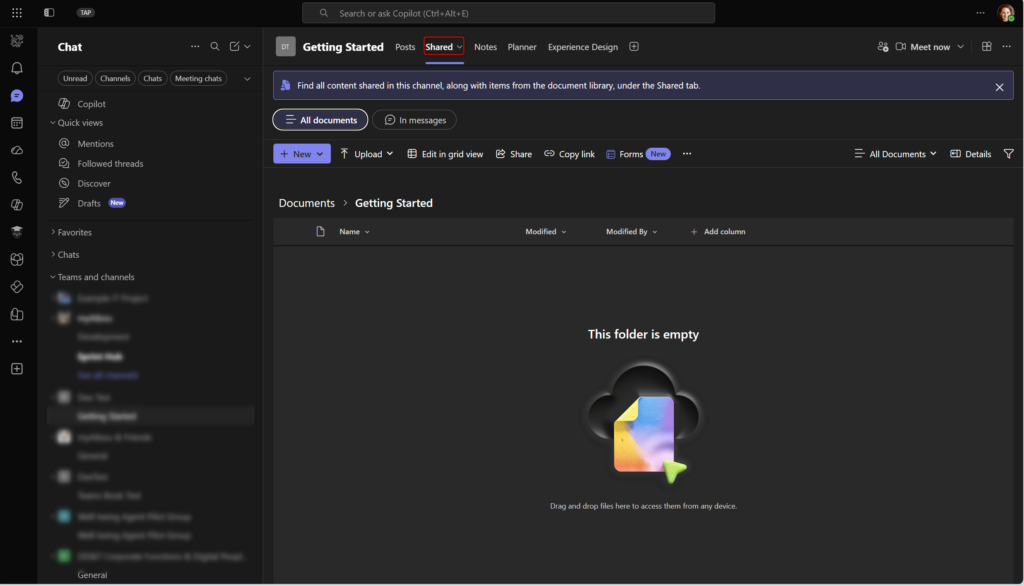
That’s it. Everything that was in Files is right here.
Finding files and links shared in posts (In posts view)
- Open any Teams channel
- Click the Shared tab
- Click In posts
- Use the Recent sort to order by date, and use the filter dropdown to toggle between Files and Links
📌 Admin note: No IT admin action is required to enable this — it rolled out automatically. But if your users are confused, a quick heads-up message or short training note goes a long way (see tips below).
Quick Tips
- Keyword search is coming to the In posts view — Microsoft flagged it as a near-term addition after the main rollout. Not there yet for everyone, but keep an eye out.
- The Shared tab in chats is not affected. This update only touched the tab in channels. Chat’s Shared tab works exactly as it always did.
- SharePoint still works the same. You can still click Open in SharePoint from any channel to jump directly to the document library — useful if you need more advanced library features like column filtering or version history.
- Heads up for your team: If you’re the kind of person who sends “quick tip” messages to your colleagues, now’s a great time. A one-liner like “Files tab is now called Shared — same stuff, plus more!” saves a lot of confusion tickets.
- GCC tenants: This rolled out slightly later for you — expect it to be live by late January 2026 if it hasn’t appeared yet.
When the Shared Tab Shines
This update is most valuable in channels that are active — where people are regularly sharing links, attachments, and files in conversation. If your channel is mostly used for announcements with documents living neatly in the library, you won’t notice much difference day-to-day.
But if your team uses channel posts the way a lot of teams do — dropping files into conversations, sharing links mid-discussion, attaching things to replies — the In posts view is going to save you real time.
One Thing to Watch Out For
Here’s an honest gotcha: the In posts view only shows content shared after the rollout became active in your tenant. If you’re hoping to find a file someone shared in a channel post from 18 months ago, it may not surface there — the indexing isn’t retroactive for all tenants. Go old-school and search in the conversation for older content.
Also worth noting: this change applies to Teams for Windows desktop and Teams for Mac desktop. If you’re on Teams web, the experience may look slightly different depending on your rollout timing.
Wrapping It Up
Microsoft didn’t break the Files tab — they improved it. The rename is a bit jarring at first (and based on the Teams community forums, a lot of people felt that way), but once you spend five minutes with the new Shared tab, the logic clicks.
Everything you had before is still there. And now you’ve also got a proper home for all those files and links that used to get buried in channel conversations.
Here’s your try-it challenge for this week: open one of your most active Teams channels, click the Shared tab, and switch to In posts. Find something that was shared in a conversation this month. Chances are you’ll immediately think of three times that view would have saved you from hunting through message history.
Honestly? It’s one of those small changes that makes you wonder why it wasn’t always like this.
📖 Official docs: Microsoft 365 Roadmap ID 470597 – Teams Shared tab in channels | Message Center: MC1025217